Find & Grep
Find & Grep
A. find vs. grep
find and grep solve different search problems:
find
→ Find files or directories

grep
→ Search inside content
A useful way to remember them:
find → WHERE is the thing?

grep → WHAT is inside?
For example:
find
→ Find all `.log` files

grep
→ Find lines containing "node"
The course focuses on find and grep rather than more advanced text-processing tools such as awk.
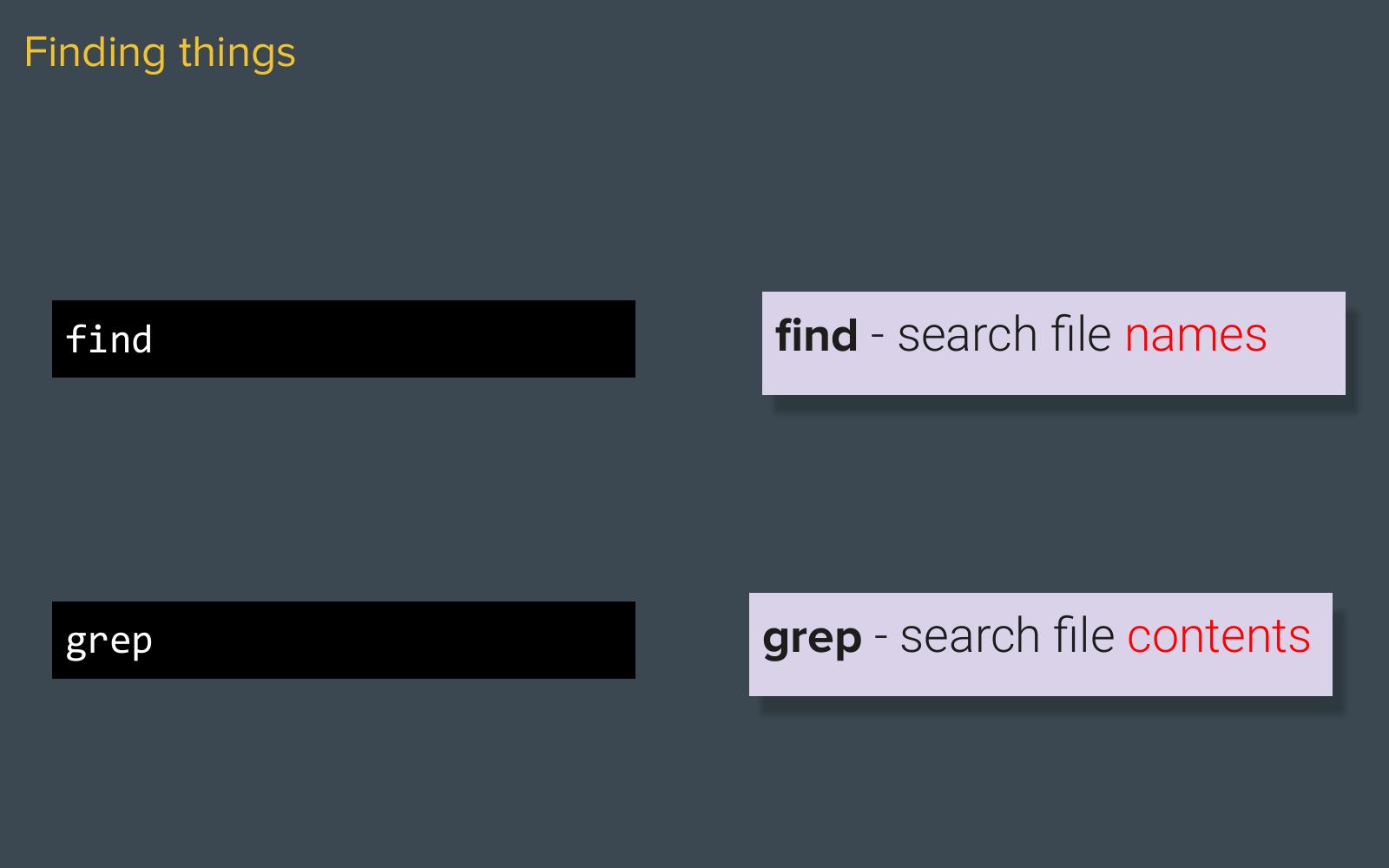
Use find for filesystem names and grep for text inside files or command output.
B. Basic find Syntax
The general idea of find is:
find [where to search] [conditions]
For example:
find /var/log -type f -name "*.log"
Breaking it down:
find
│
├── /var/log
│   └── Where to search
│
├── -type f
│   └── Look for files
│
└── -name "*.log"
    └── Look for names ending in .log
The command applies each part from left to right:
The course points out that find syntax may initially look strange and is worth keeping as a reference rather than trying to memorize immediately.
Other useful find conditions
The slides also list several conditions that can be combined with the search path:
# Find empty files or directories
find . -empty

# Find executable files
find . -type f -executable

# Find writable files
find . -type f -writable
These conditions filter results; they do not modify the matching files.
C. Find Files by Type
-type specifies what kind of filesystem object we want.
To search for files:
-type f
f → file
Example:
find /var/log -type f
means:
Find files under
/var/log.
To search for directories:
-type d
d → directory
For example:
find / -type d -name "log"
means:
The / means we are starting from the root of the filesystem.
D. Find Files by Name
Use:
-name
to search by filename.
For example:
find /var/log -type f -name "*.log"
The wildcard:
*
means:
Match any characters.
Therefore:
*.log
can match names such as:
error.log
access.log
application.log
So:
find /var/log -type f -name "*.log"
means:
Find all files under
/var/logwhose names end in.log.
E. Permission Denied
When searching protected parts of the filesystem, find may return:
Permission denied
For example, searching from:
find /
can enter directories that a normal user is not allowed to access.
The course therefore demonstrates using sudo when necessary:
sudo find /var/log -type f -name "*.log"
Searching with find itself is a read-only operation, so experimenting with searches does not modify the files.
F. sudo !!
The course also introduces a useful shell shortcut:
sudo !!
!! means:
The previous command in your shell history.
So if you run:
find /var/log -type f -name "*.log"
and receive:
Permission denied
you can run:
sudo !!
instead of typing the whole command again.
Conceptually:
The course describes this as a useful shortcut that becomes muscle memory over time.
G. grep — Search Inside Content
While find searches for files and directories, grep searches inside text/output.
find
↓
Which file/directory?

grep
↓
Which line/content?
Basic syntax:
grep [pattern] [file]
For example:
grep "node" app.log
means:
Search
app.logfor lines containingnode.
grep can also work with regular expressions for more specific searches.
Use -i when letter case should not matter:
grep -i "node" app.log
This matches node, Node, and NODE.
H. Using grep with a Pipe
One of the most useful ways to use grep is together with a pipe:
|
→ Pass the stdout of one command to the stdin of another command
For example, the course uses:
ps aux
ps stands for process status. It displays information about processes currently running on the system.
ps
→ Show process information

a
→ Show processes from all users

u
→ Display detailed user-oriented information

x
→ Include processes that are not attached to a terminal
So:
ps aux
means:
Show a detailed list of processes currently running on the system.
For example, imagine the output contains:
root     123   nginx
wilson   456   node app.js
wilson   789   python server.py
If we only want lines related to node, we can pipe the output into grep:
ps aux | grep node
Breaking it down:
ps aux
→ List running processes

|
→ Pass the output to grep

grep node
→ Keep only lines containing the text "node"
The result would be:
wilson 456 node app.js
Conceptually:
It is important to understand that grep is performing text matching.
It does not actually understand whether something is a Node.js process. It simply searches each line and returns lines containing the text:
node
This is useful when a command produces a large amount of output and we only want to see specific information.
The general pattern is:
command | grep "text"
This is why grep is commonly combined with other Unix commands to quickly filter large outputs.
I. Regular Expressions with grep
grep can search for simple text:
grep node
but it can also use regular expressions (regex) for more specific matching.
Conceptually:
Simple search
↓
grep node

More specific search
↓
grep [regular expression]
The course notes that regex can make searches very specific, although for many everyday tasks simply searching for the text you want is enough.
J. zgrep
The course briefly mentions zgrep.
zgrep allows us to search inside compressed files without manually uncompressing them first.
For example, suppose we have a compressed log file:
app.log.gz
and we want to find all lines containing ERROR.
Instead of:
we can directly run:
zgrep "ERROR" app.log.gz
Conceptually:
For example, the result might be:
2026-08-27 10:32:15 ERROR Database connection failed
2026-08-27 10:35:42 ERROR Request timeout
So the basic relationship is:
grep  → Search text

zgrep → Search text inside compressed files
Note: The course mentions the purpose of
zgrep, but the command example above is an additional example.
K. The Big Picture
The most important distinction is:
find
│
├── Searches the filesystem
├── Finds files/directories
└── "Where is it?"

grep
│
├── Searches content
├── Finds matching lines
└── "What's inside?"
Examples:
# Find .log files
find /var/log -type f -name "*.log"

# Find directories named log
find / -type d -name "log"

# Search a file for node
grep "node" app.log

# Filter command output
ps aux | grep node
And they fit naturally with what we learned about standard streams:
The core idea is:
Use
findto locate files and directories, and usegrepto search and filter their contents or command output.