Core Fundamentals
Notes organized by topic, with the corresponding course slides.
Box model
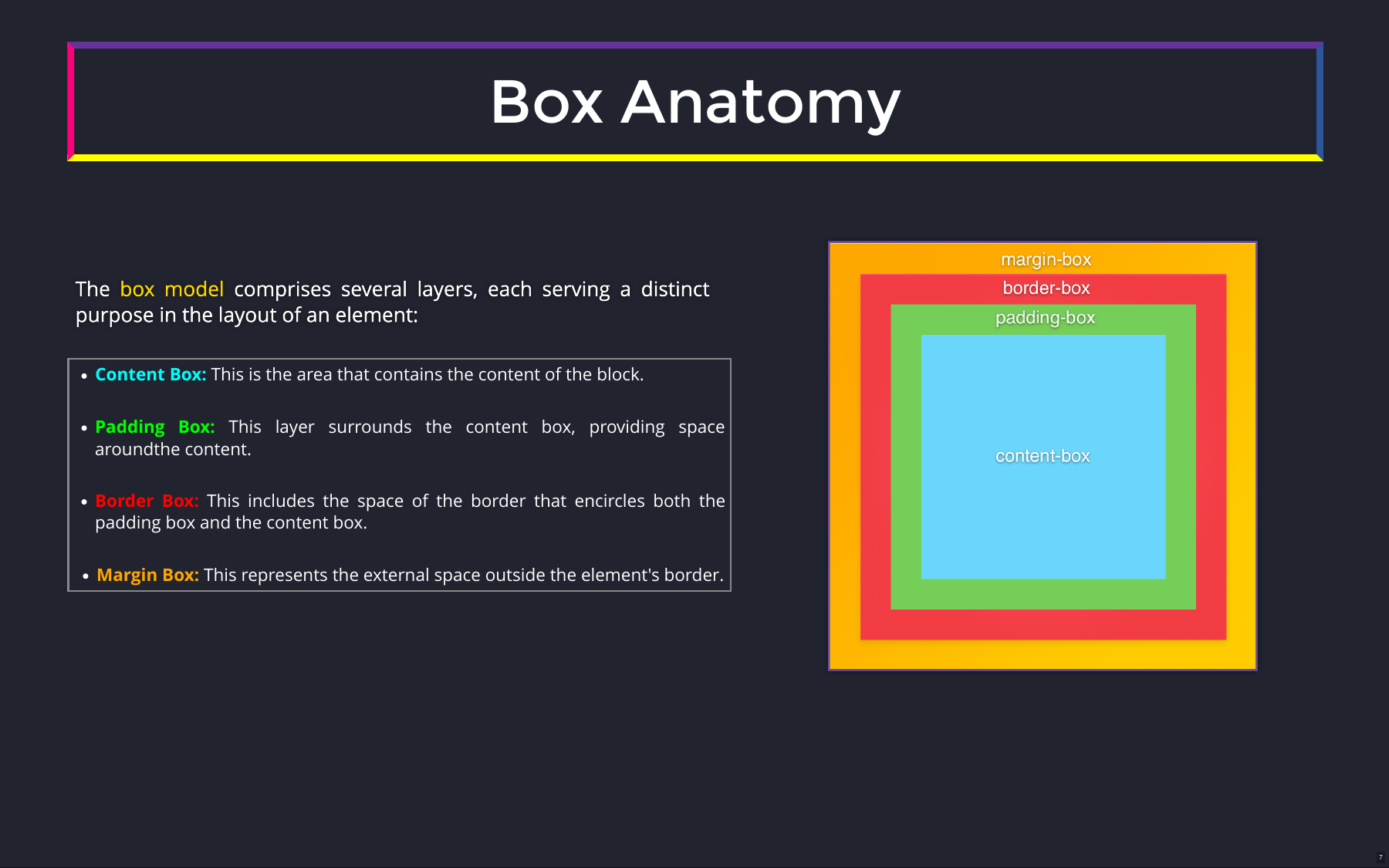
Every HTML element on the page is a box; most layouts are just rectangles composed together. Each box has four layers.
Box Properties
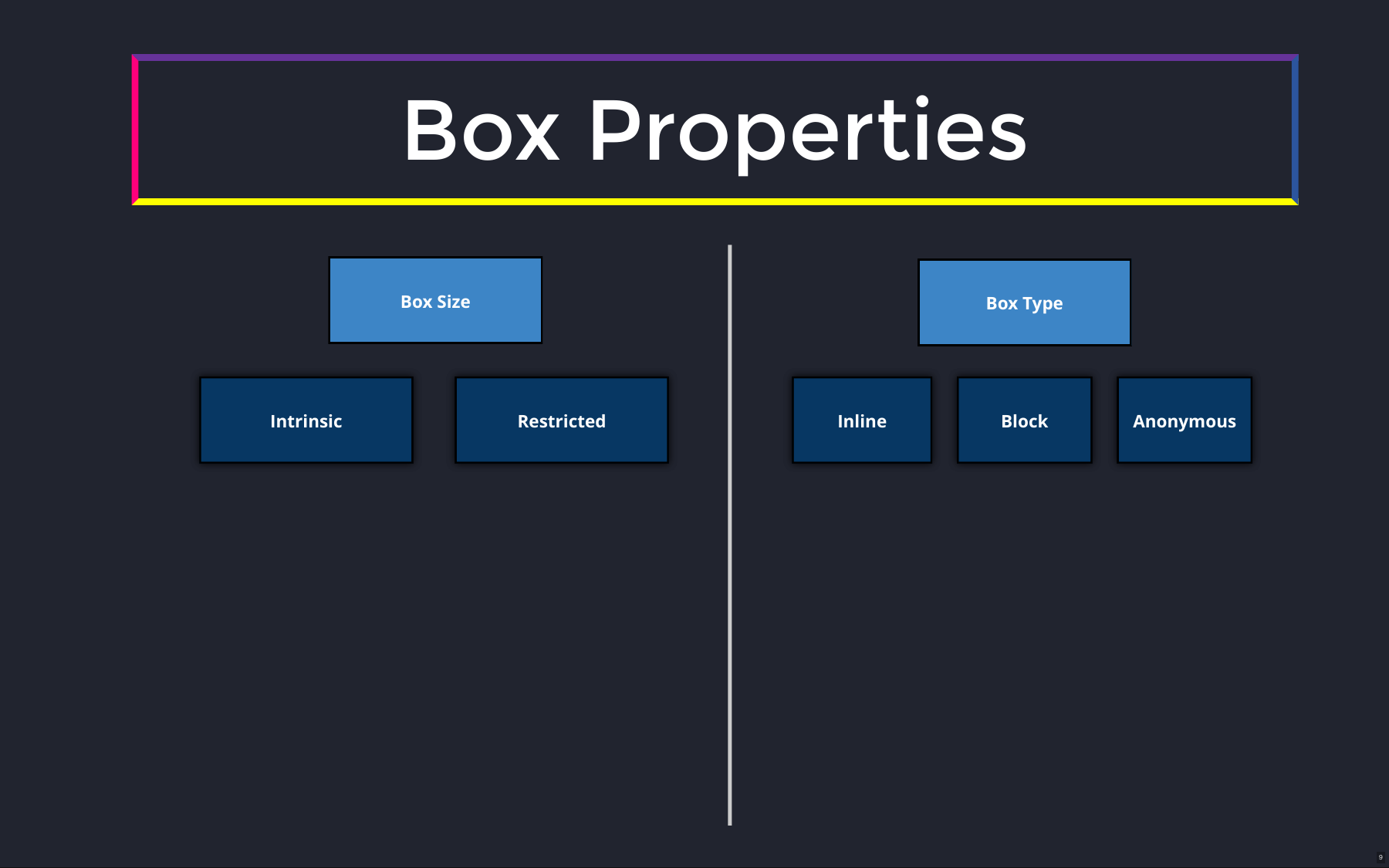
A box has two properties: box size and box type.
Box Size
A box's width and height are resolved in one of two ways:
- Intrinsic sizing — driven by the content's own requirements.
- Restricted sizing (course term) — constrained by CSS or the available layout space.
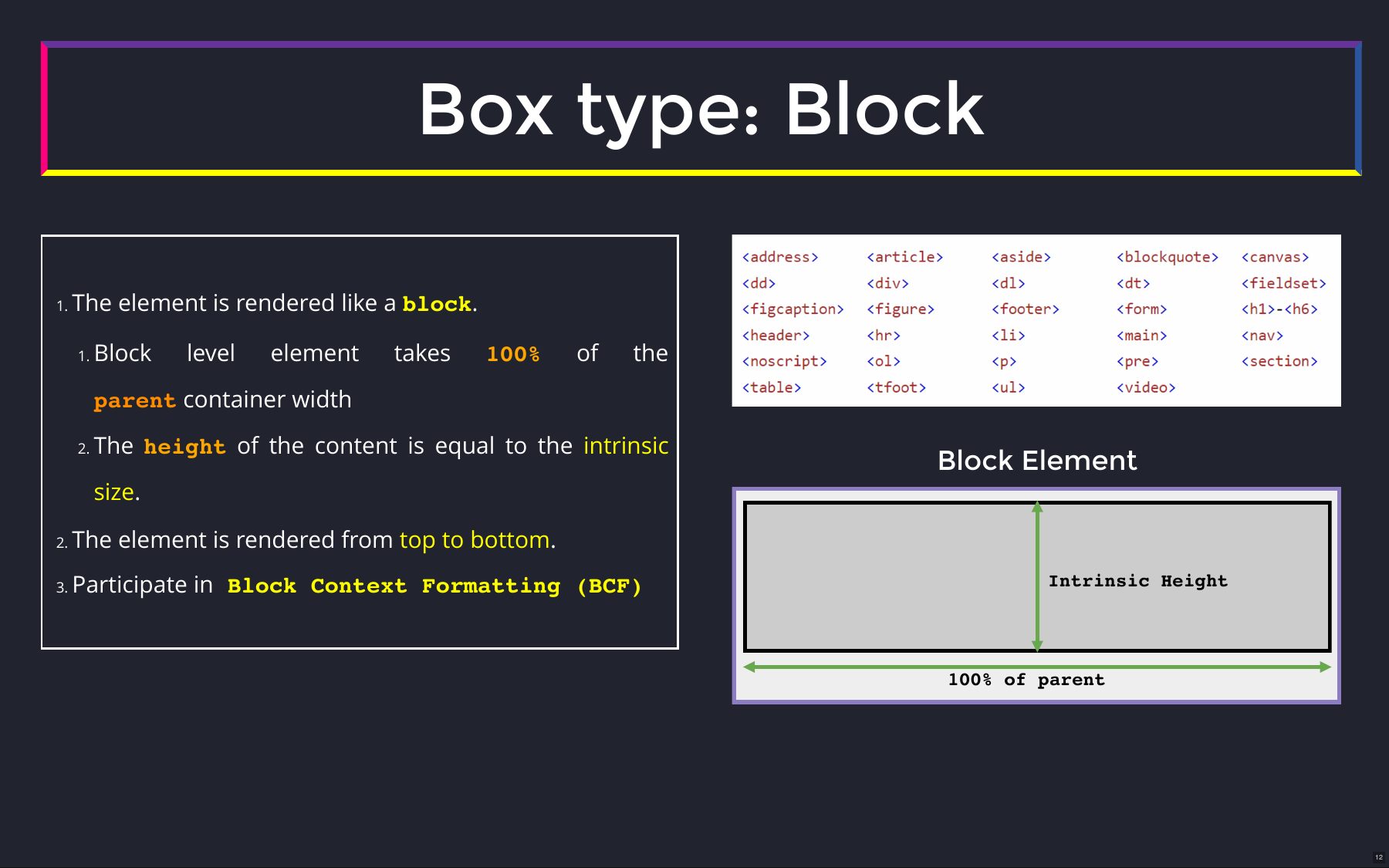
For a normal block-level div, width: auto fills the parent's available width, while height: auto grows with the content.
With a parent height of 400px:
| Child's height | Result |
|---|---|
auto | Fits the content; can exceed 400px. |
100% | 400px, even if the text needs more space. |
600px | 600px, exceeding the parent's height. |
A parent can affect a child's size even without setting a maximum on it.
Box types and sizing
The second property is box type: block-level, inline-level, or anonymous.
Block-level boxes
Anonymous boxes
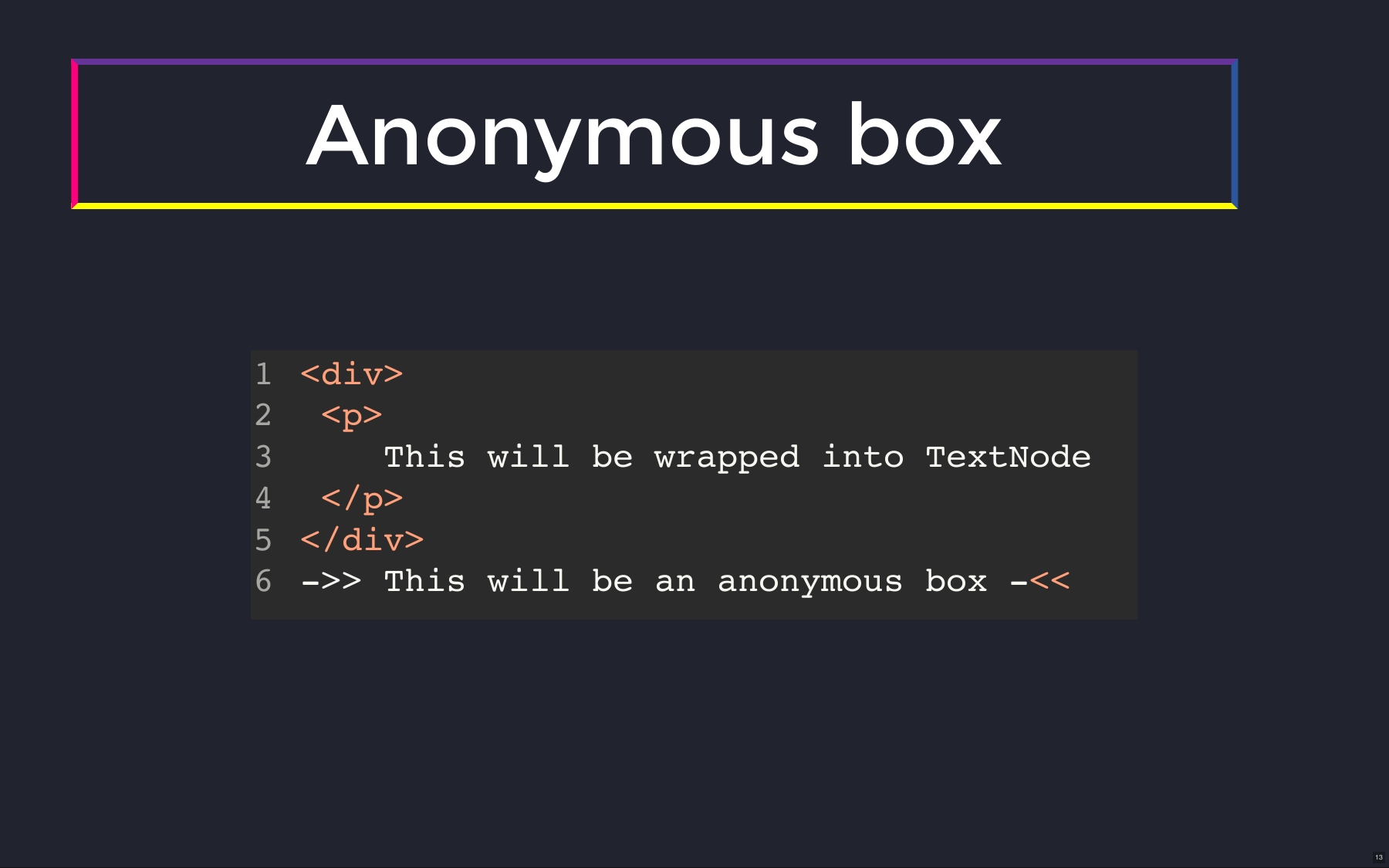
The browser generates an anonymous box to hold content for layout when no element corresponds to it.
<div>
  Hello
  <p>World</p>
</div>
Hello is wrapped in an anonymous block box so it can be laid out as a block next to <p>.
- It exists in the layout tree but adds no node to the DOM.
- It has dimensions and follows layout rules, but no CSS selector can target it.
- Anonymous boxes can be block or inline.
"Anonymous" describes how the box is generated; "block" and "inline" describe how it participates in layout.
Mathematics of Block Elements
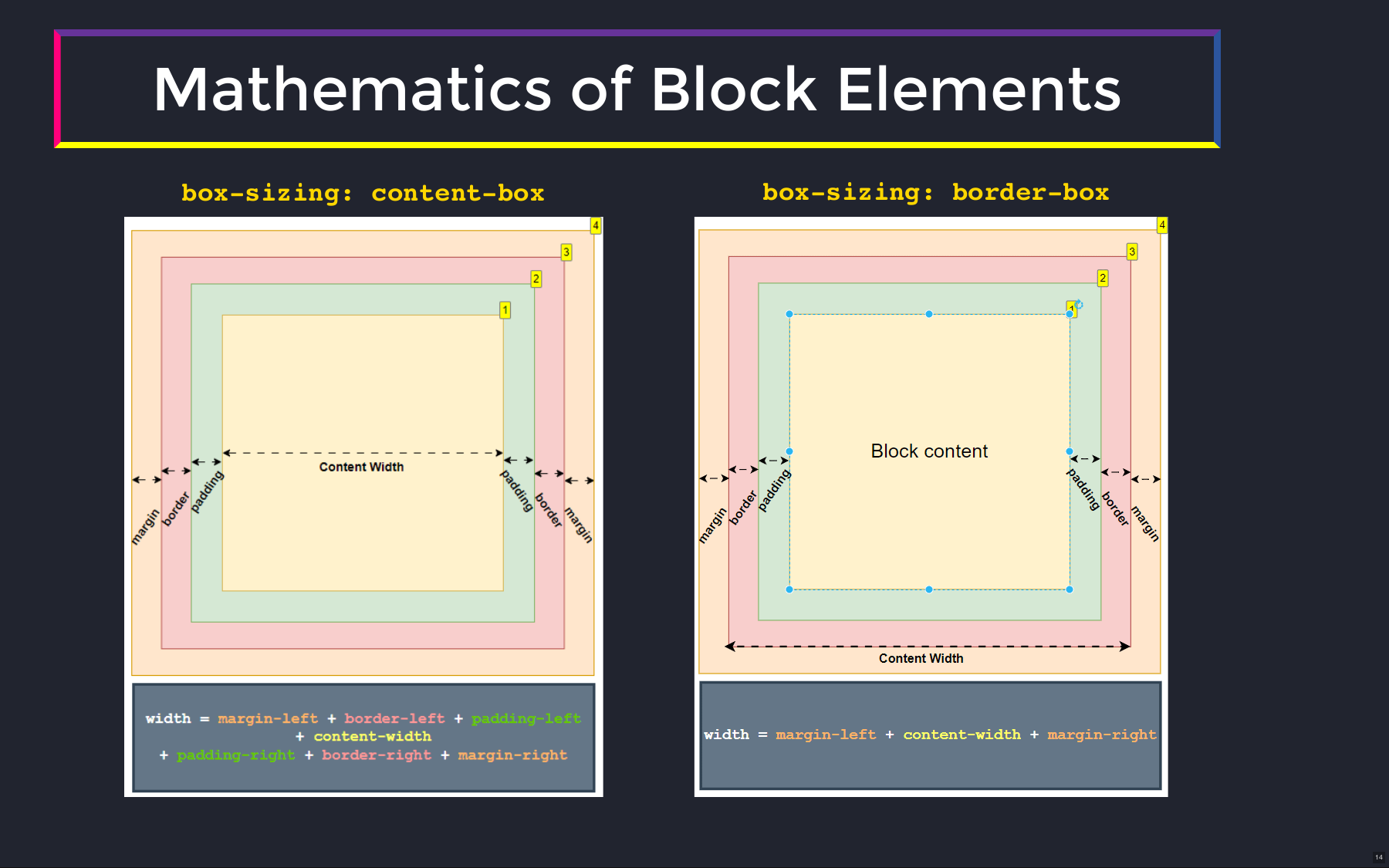
The width calculation depends on box-sizing:
content-box(default) —widthsets only the content area. The rendered width is the sum of every layer:width + padding-left + padding-right + border-left + border-right.border-box— padding and border are included inwidth. Nothing extra to add in JavaScript except the margins.
Because of this, teams often apply border-box globally:
*,
*::before,
*::after {
  box-sizing: border-box;
}
It simplifies layout math: the width you set is the final rendered width, percentages and fixed padding can coexist without overflowing their container, and adjusting an element's padding never changes its footprint or pushes sibling elements around.
Inline elements
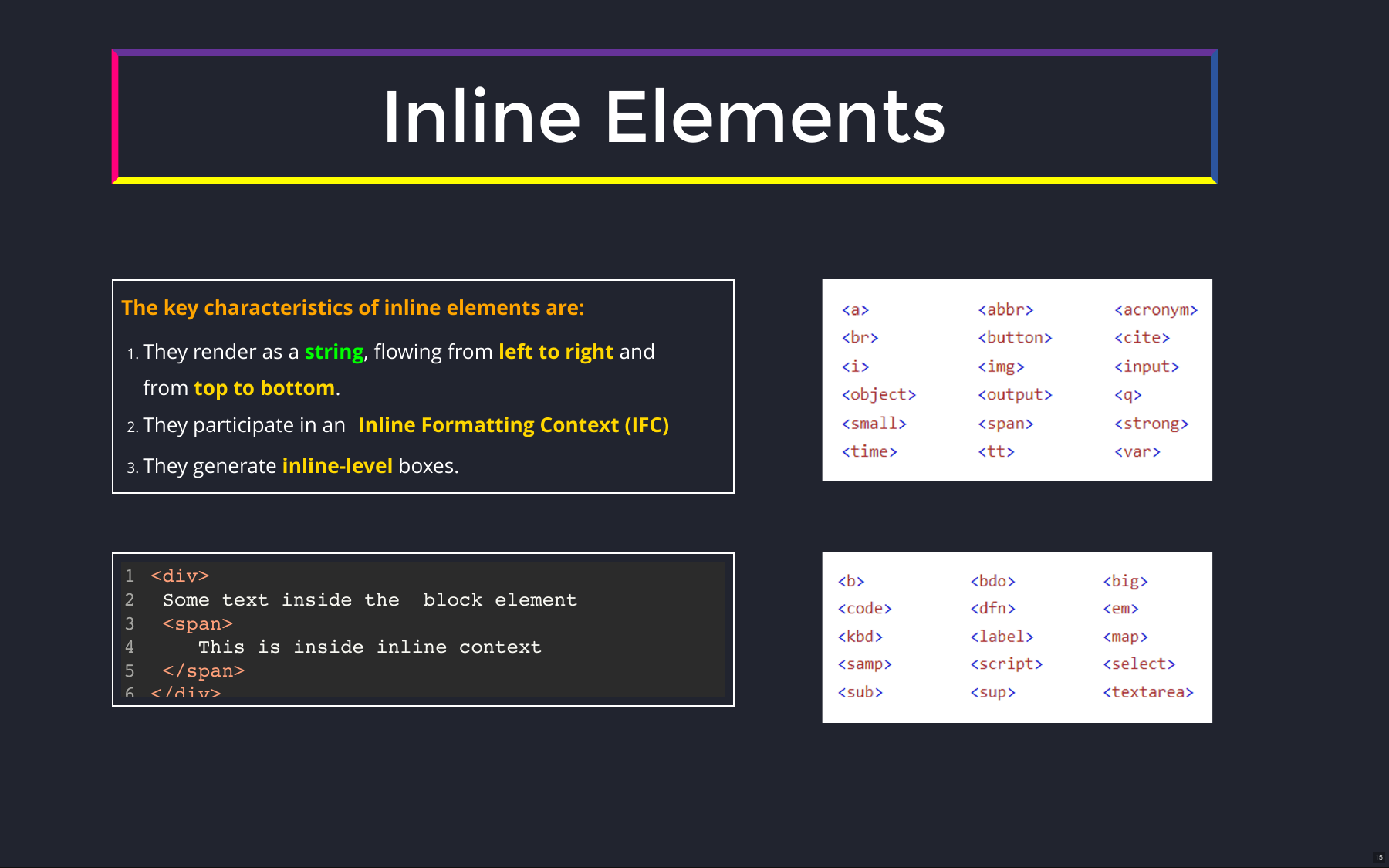
Inline elements render like a run of text, flowing left to right and top to bottom. They participate in an inline formatting context (not a block one) and generate inline-level boxes.
Mathematics of Inline Elements
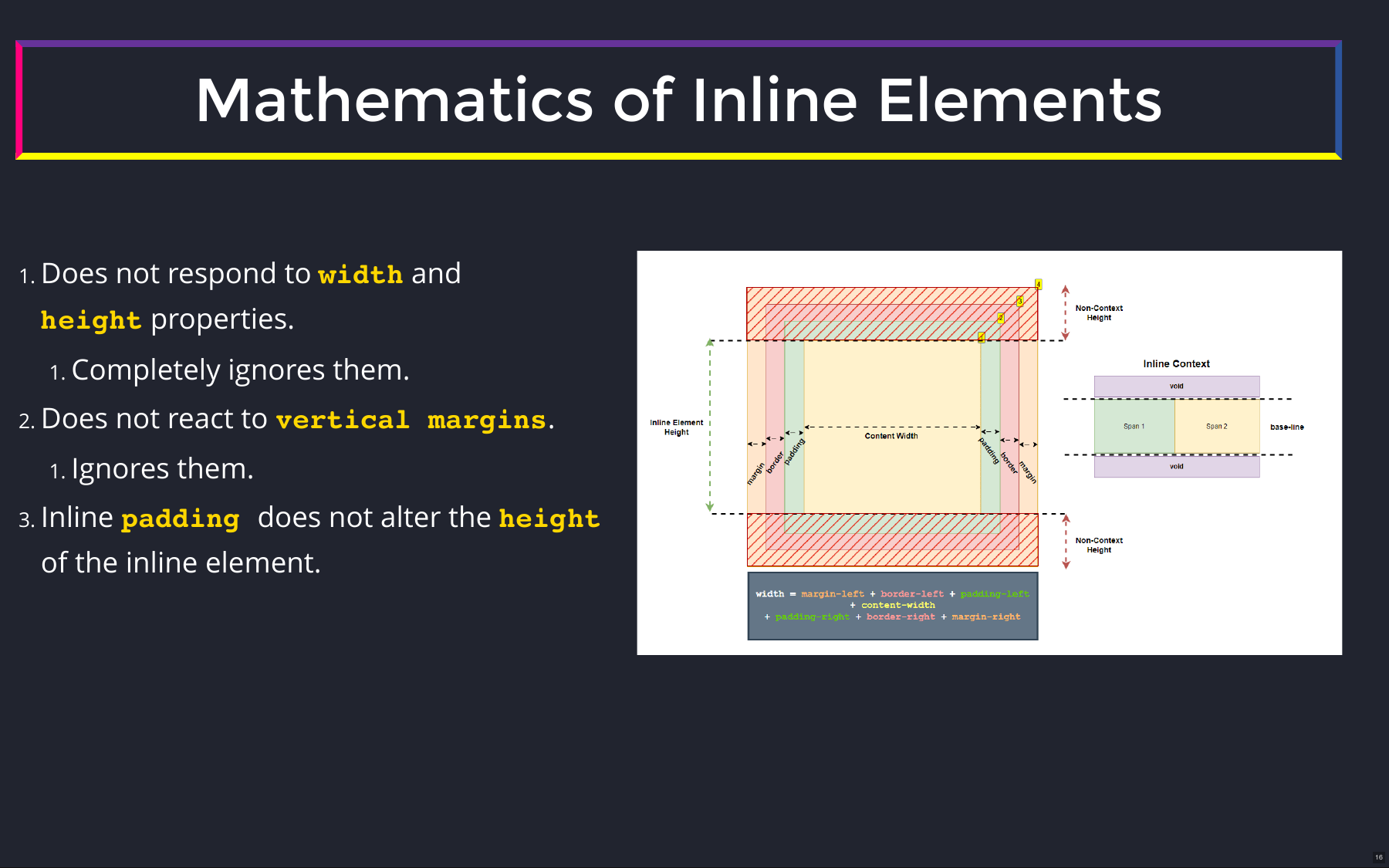
Inline elements follow different sizing rules:
widthandheightare ignored entirely.- Vertical margins have no effect.
- Vertical padding does not change the height used for inline layout.
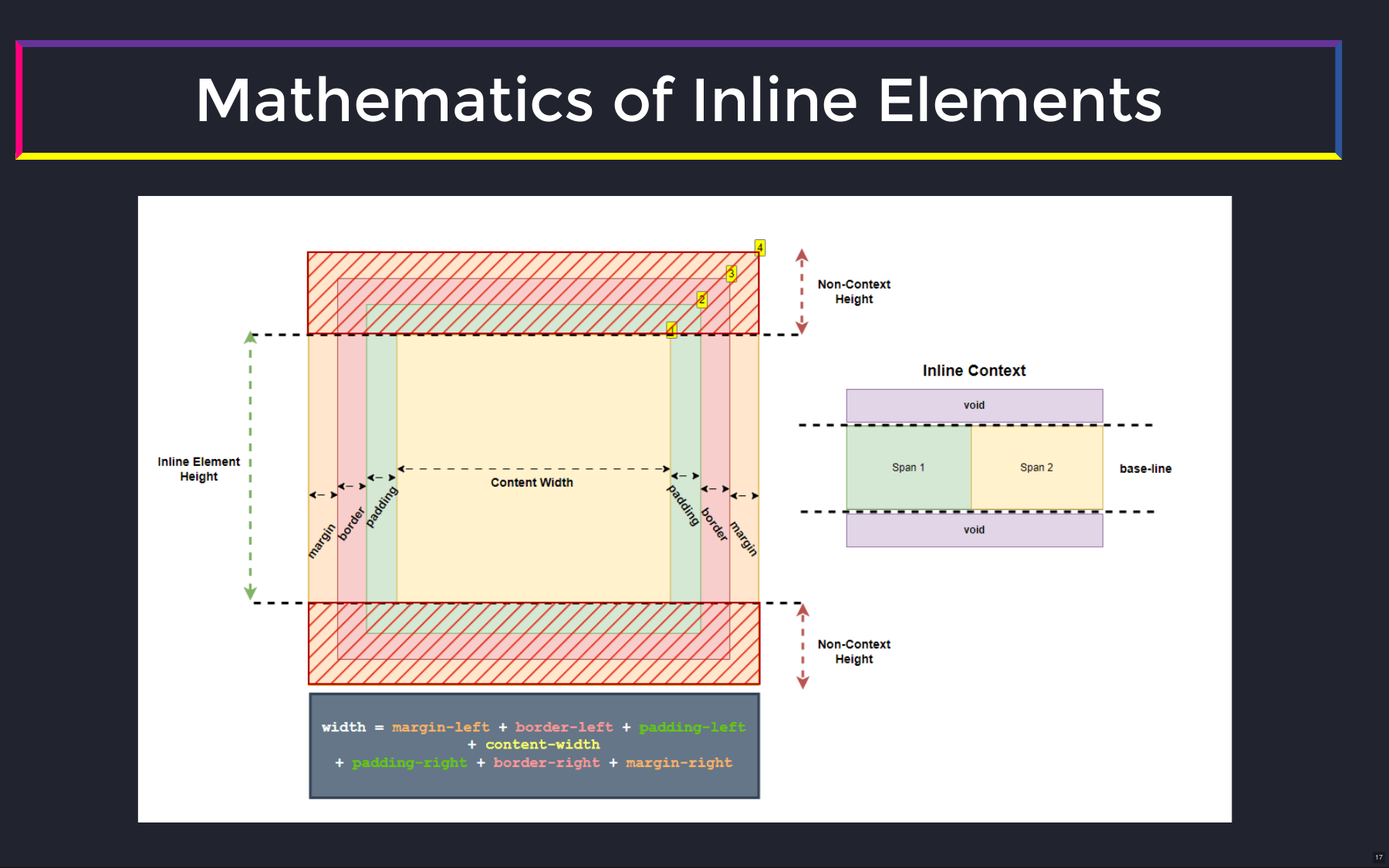
The layout height comes from the intrinsic height or the line-height. Anything extending past the line box — visible as extra height in the browser console — is ignored in the layout calculation. This is called non-context height.
Formatting contexts
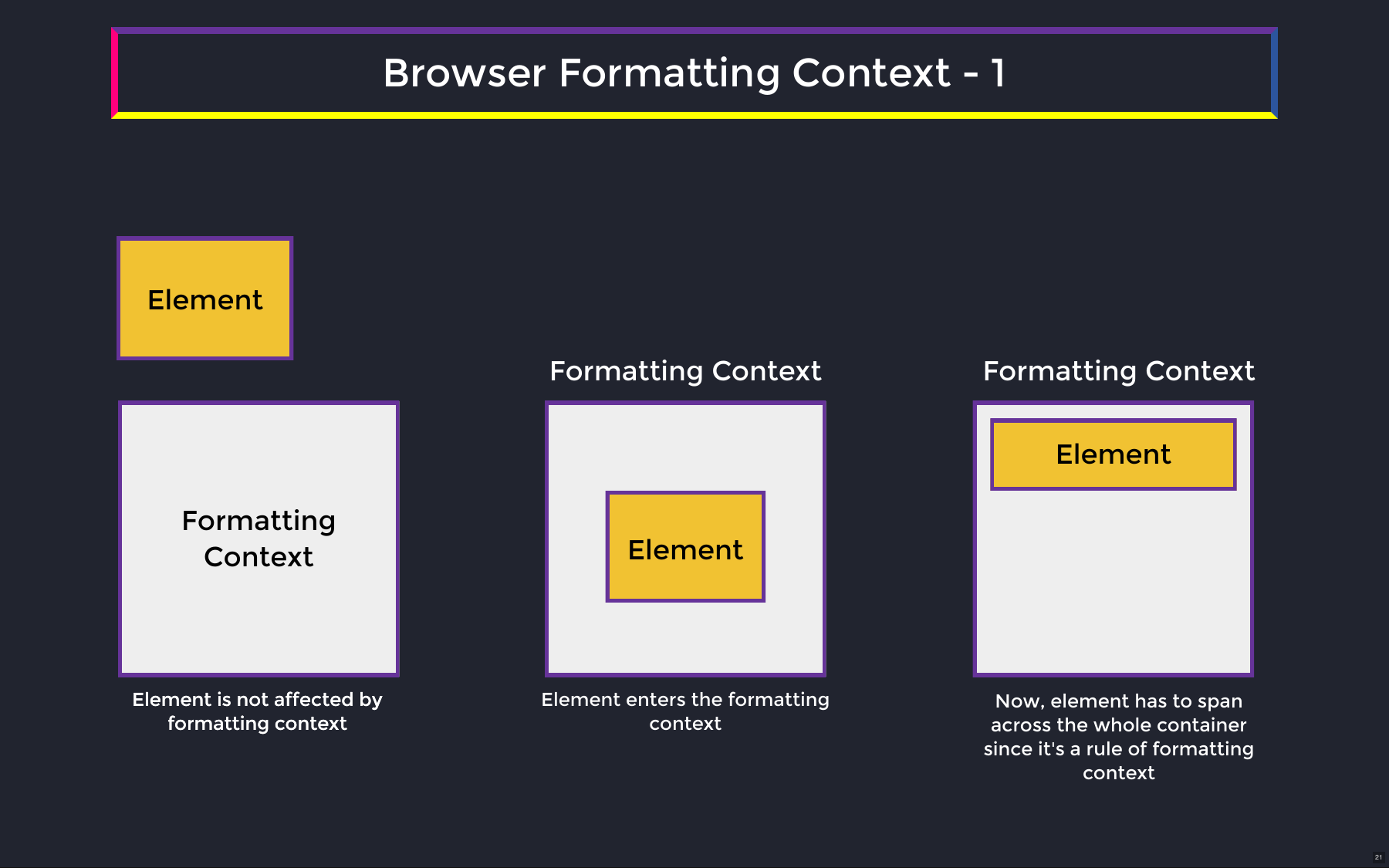
A formatting context is a "realm" with its own layout rules. When an element enters it, those rules apply — for example, "take up 100% of the parent's width" and "render top to bottom" recreate a block formatting context.
Nested formatting contexts
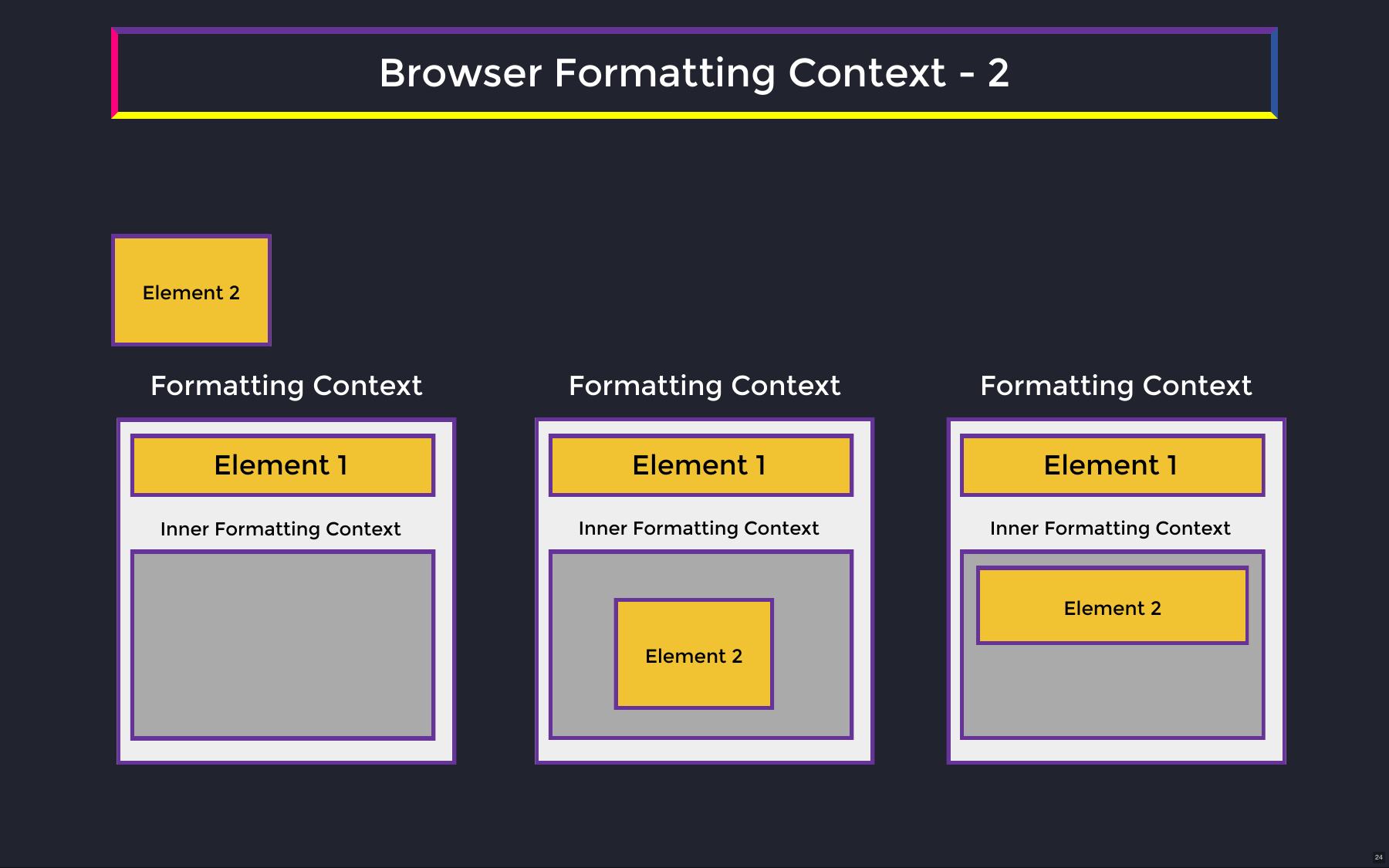
An inner formatting context is isolated from the outer one. Once an element enters it, it follows the inner rules, not the outer layout rules.
Key ideas
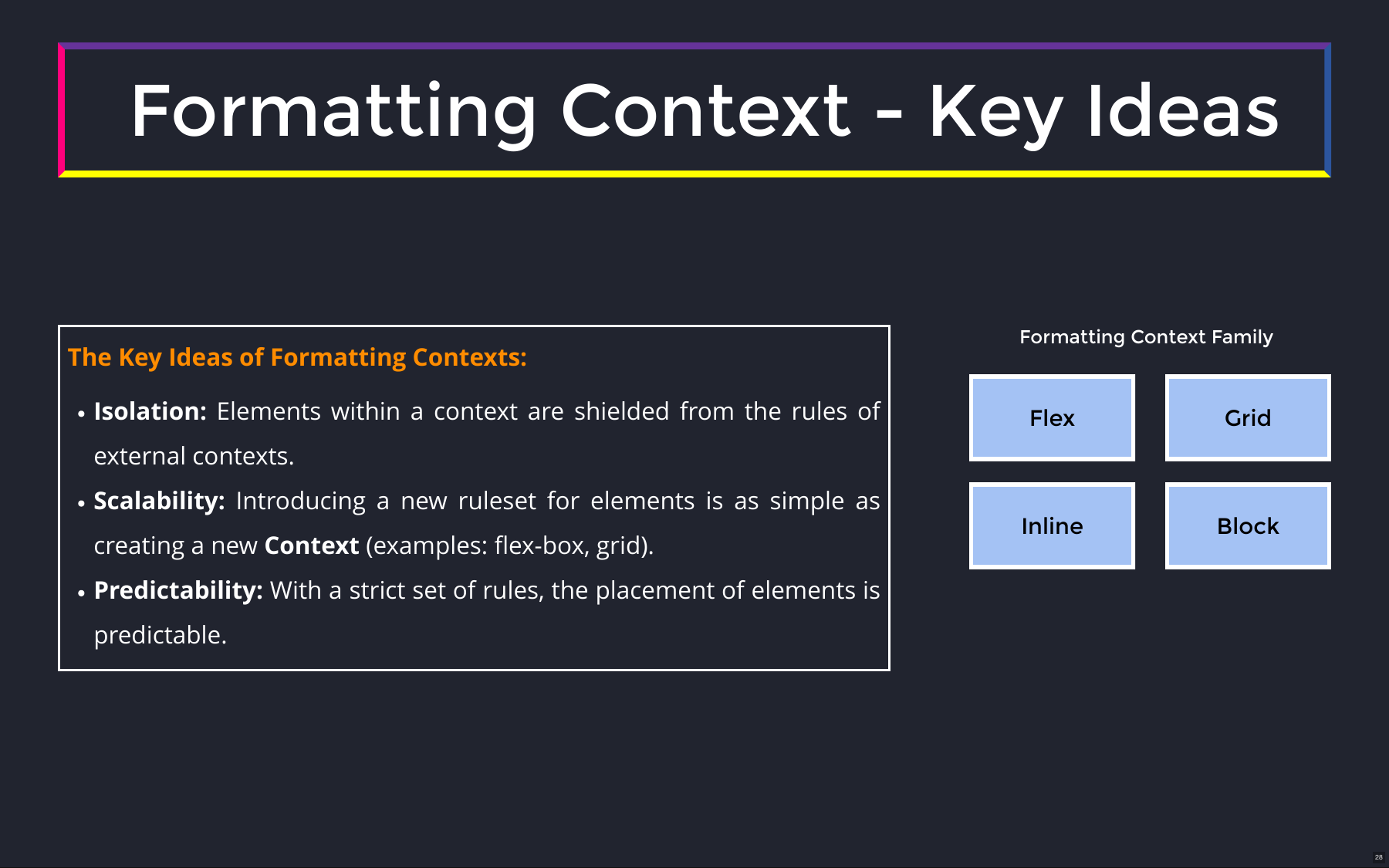
- Isolation — elements inside a context are shielded from the layout rules of outer contexts.
- Scalability — a new set of layout rules can be introduced as a new context. Flex and Grid are the best-known examples.
- Predictability — a strict rule set makes element positions predictable.
Becoming the browser: formatting exercise
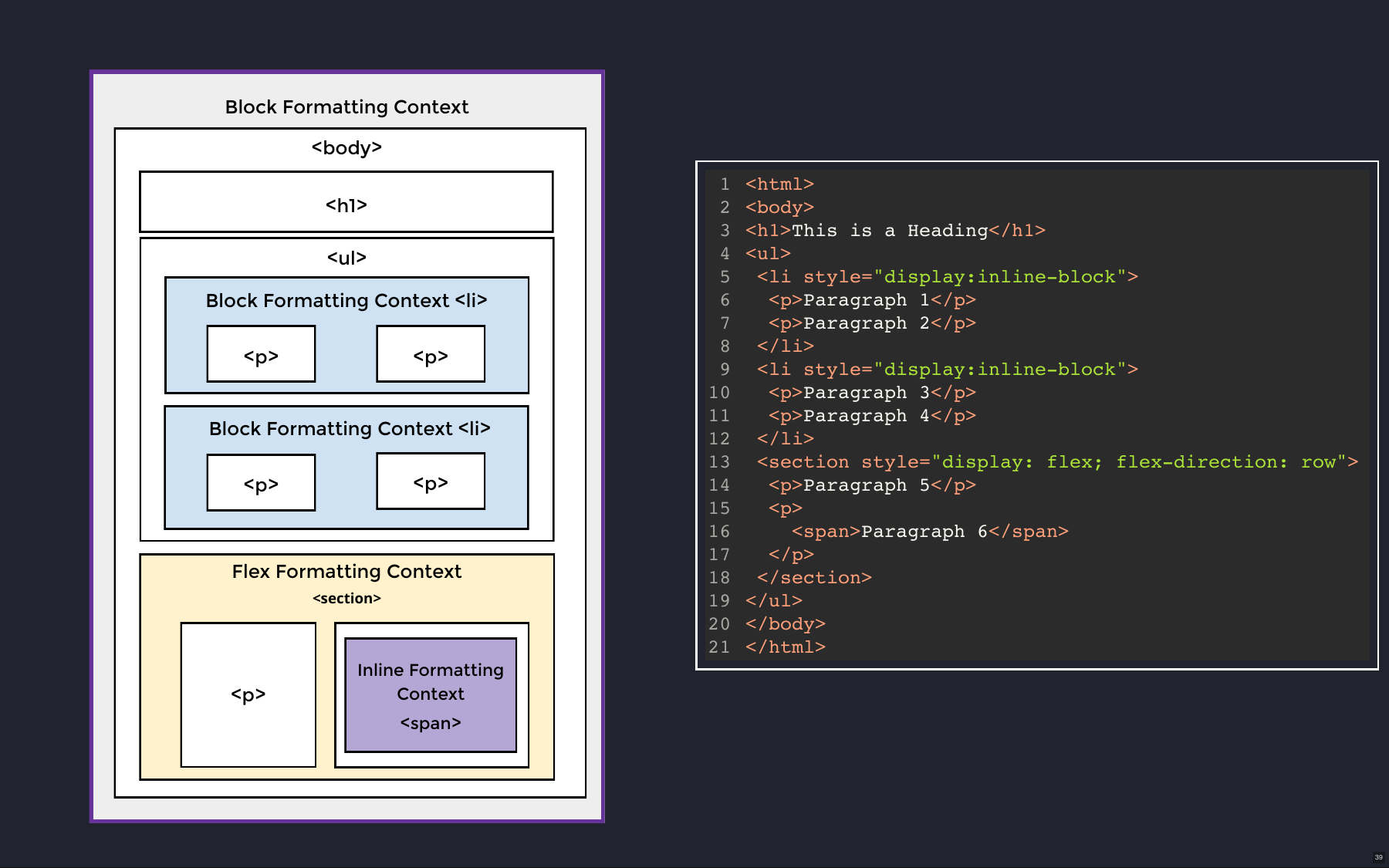
Walking the tree and asking, at each element, "does this create a new formatting context?":
inline-block is a special case of a block formatting context — there is no separate "inline-block formatting context".
Browser positioning system
Normal flow
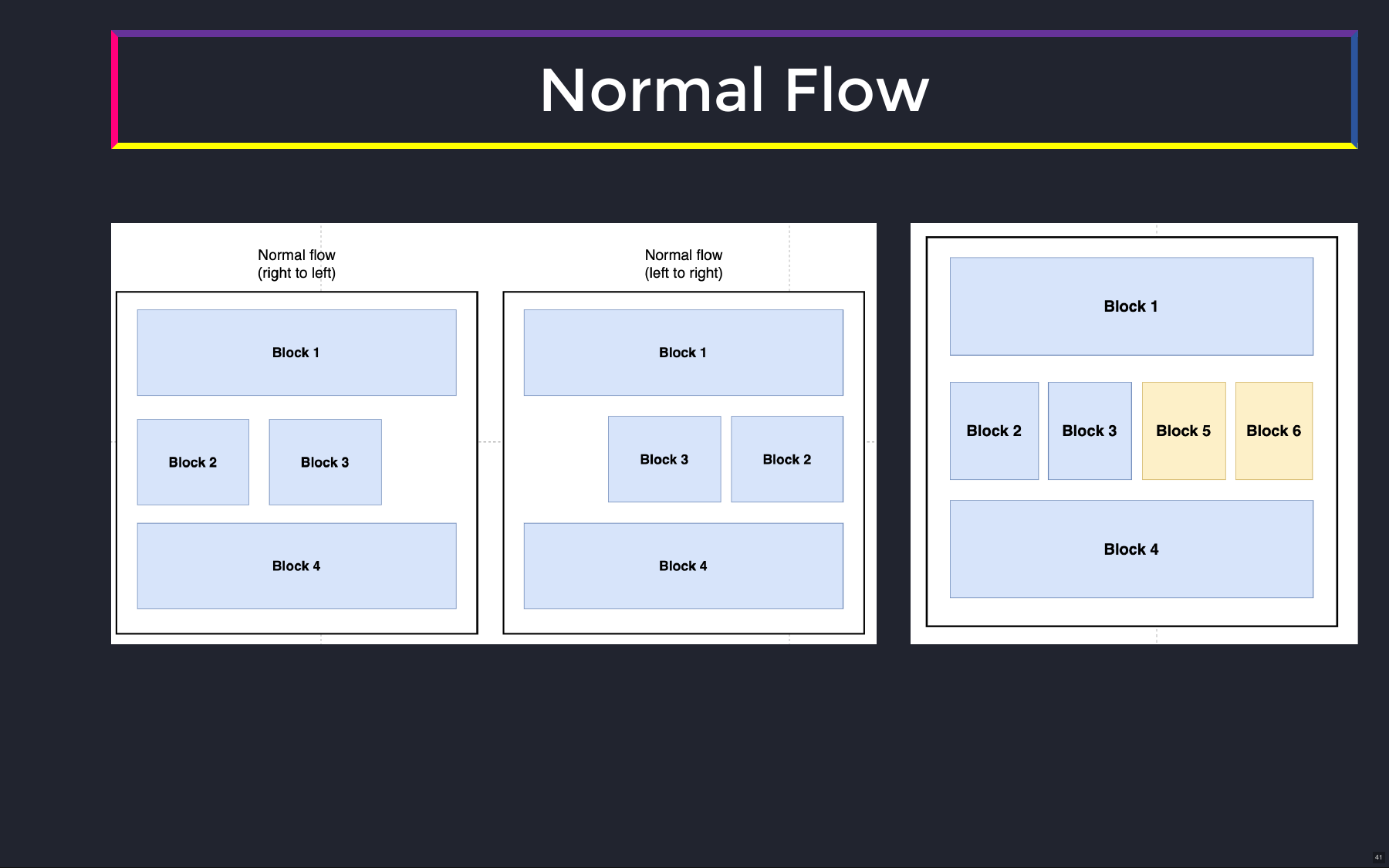
Normal flow renders elements in their natural order — top to bottom, and left to right (or right to left in RTL languages). The position property changes how the browser positions an element; the most useful values are static, relative, and absolute.
Static positioning
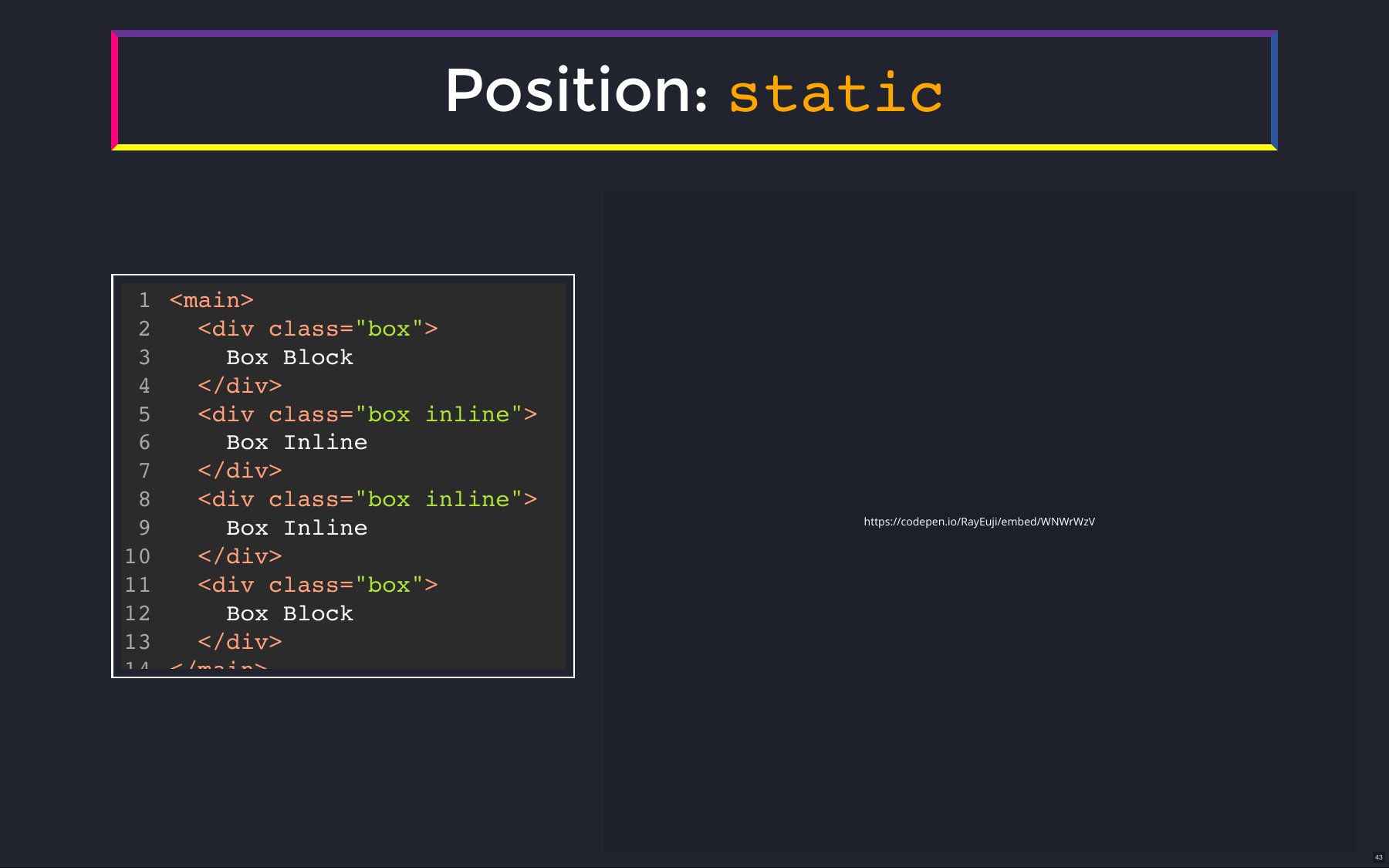
The default. Elements render top to bottom and left to right.
Relative positioning
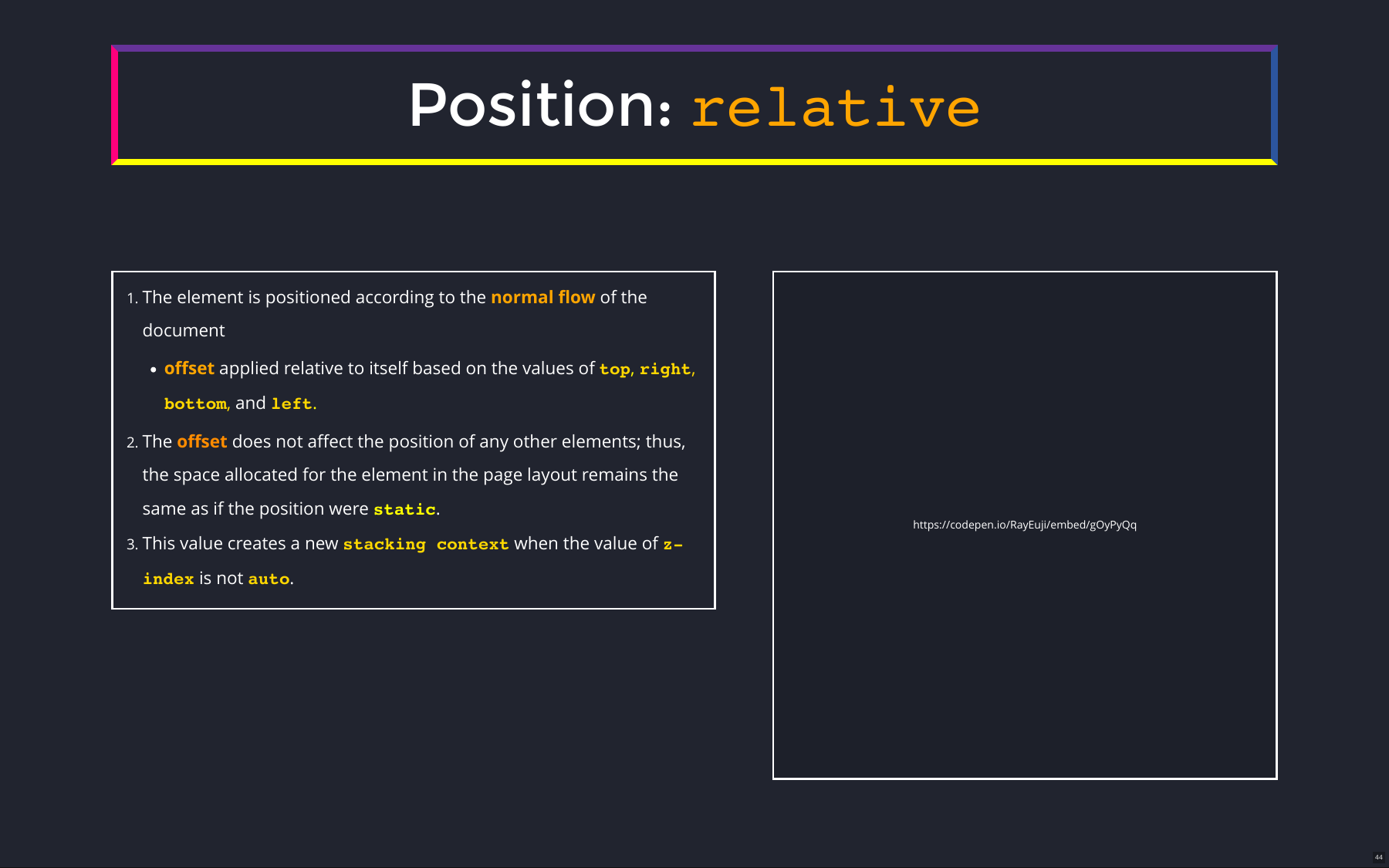
The browser lays the element out in normal flow, then adjusts its final position with top / right / bottom / left. The offset does not affect other elements — the original space is preserved.
Containing block
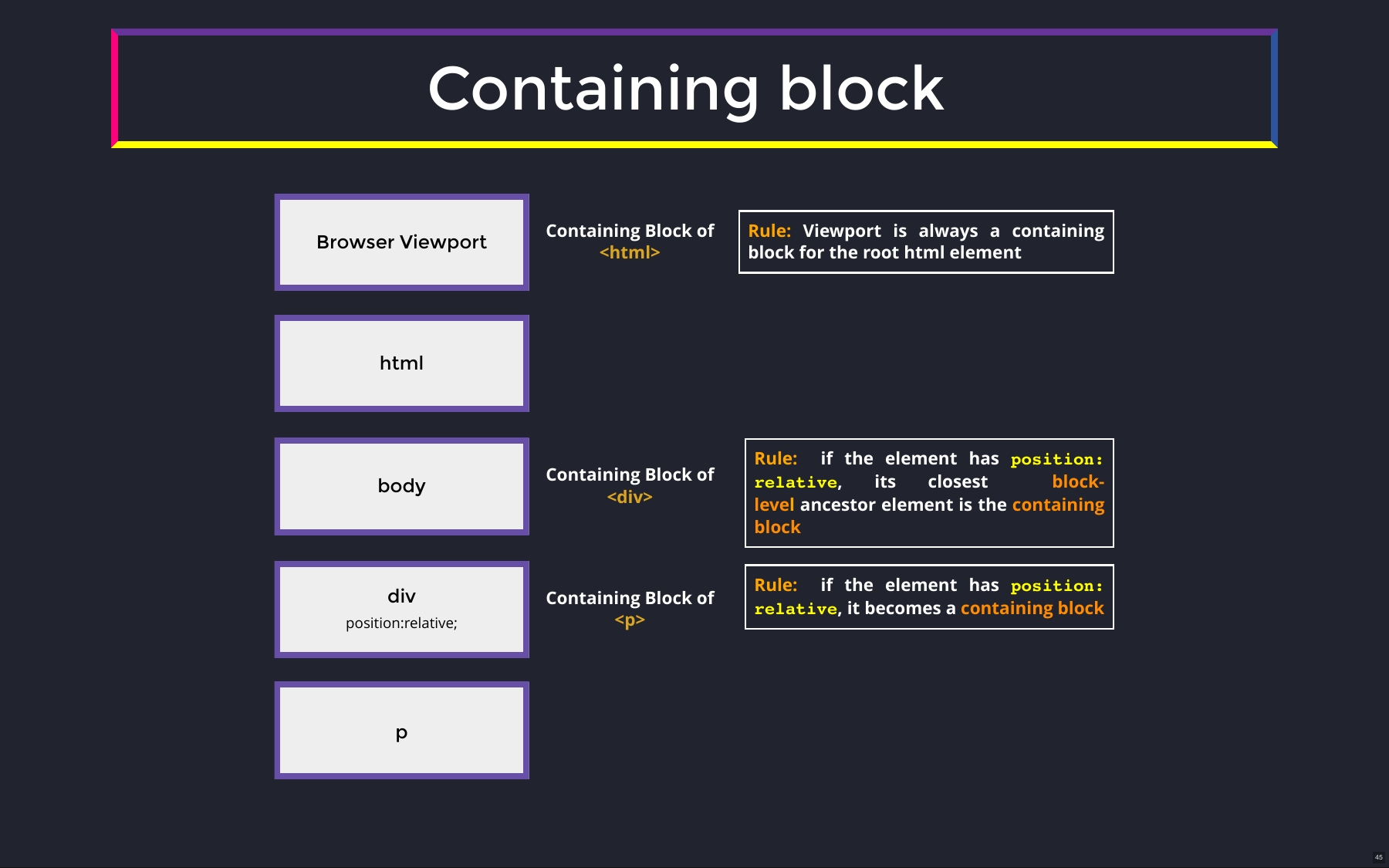
A containing block is the reference used to calculate an element's position.
- For the
htmlelement, the reference is the browser viewport. - Rules determine when an element establishes a containing block for its descendants — for example, giving a
divposition: relativemakes it the containing block for an absolutely positioned paragraph inside it.
Absolute positioning
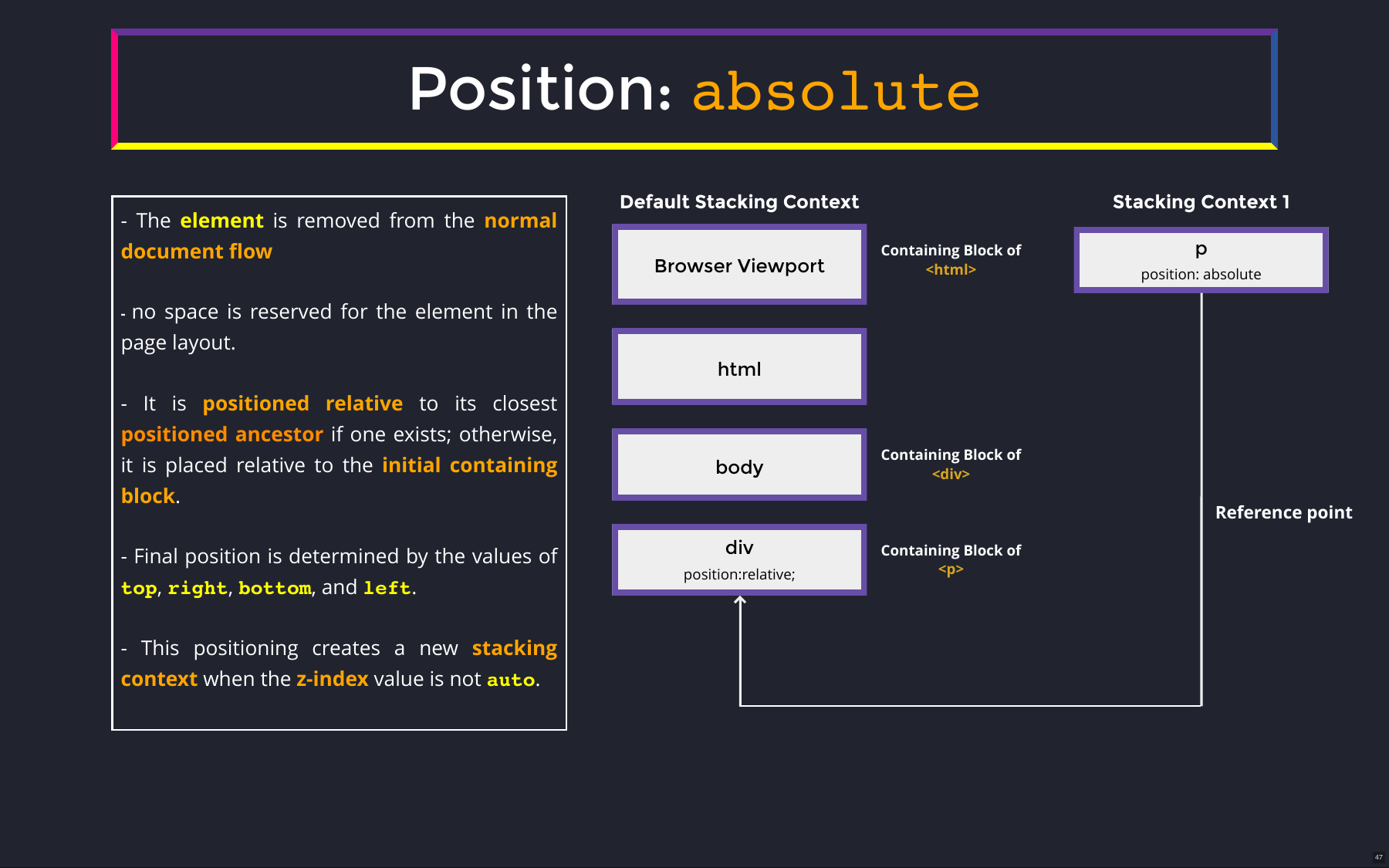
The element is removed from normal flow and establishes a new stacking context, isolating its changes from the default one. Its final position comes from top / right / bottom / left, measured against its containing block. With no positioned ancestor, that is the viewport, so it lands in the top-left corner.
Stacking contexts and the Z-axis
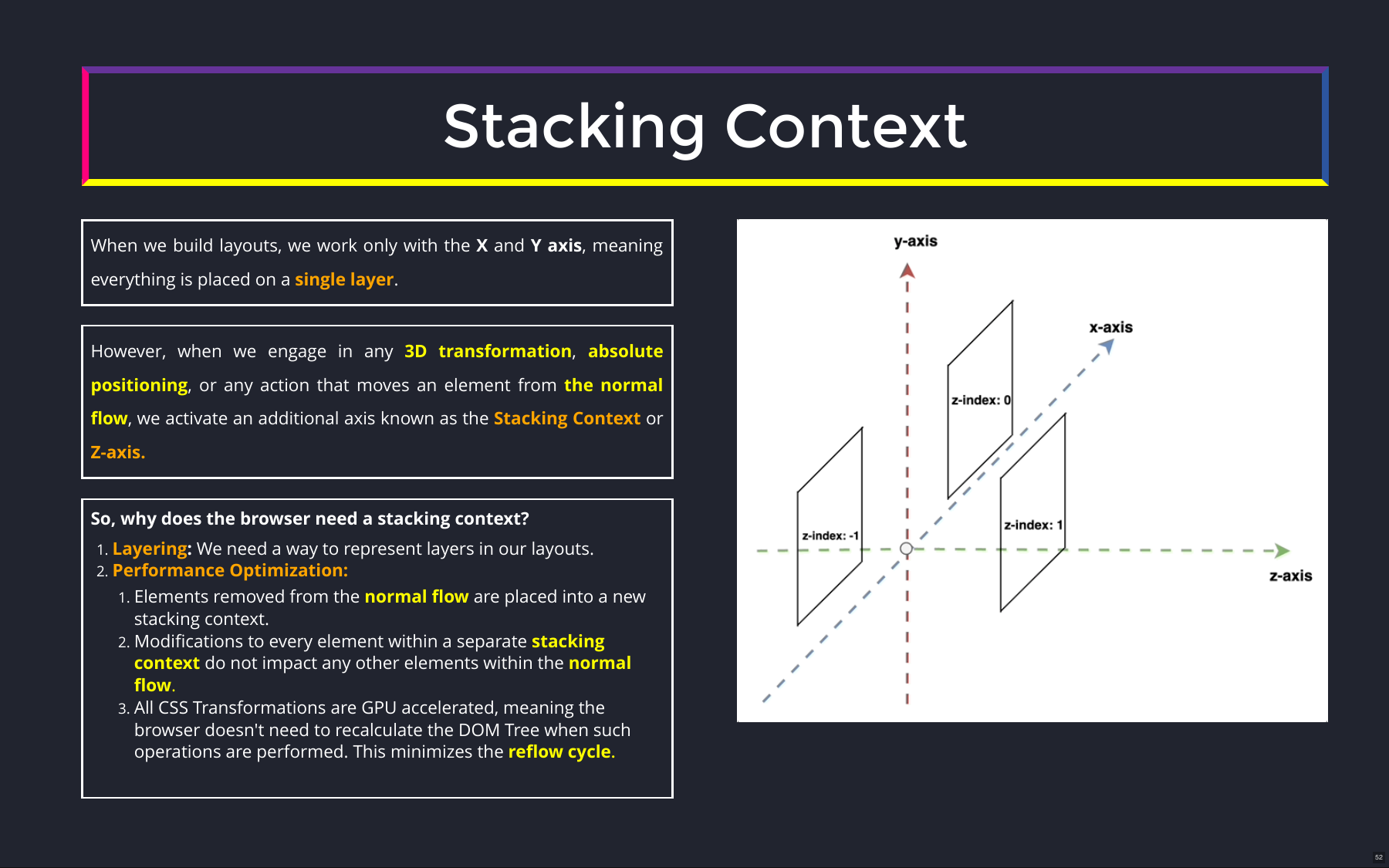
Beyond X and Y, rendering has a Z-axis that matters for layering and 3D transforms. A stacking context is an isolated group of elements with its own layering order. (Stacking contexts later connect to GPU layers.) Applying translateZ to a set of boxes moves them along the Z-axis and stacks them on top of one another.
Reflow and the rendering pipeline
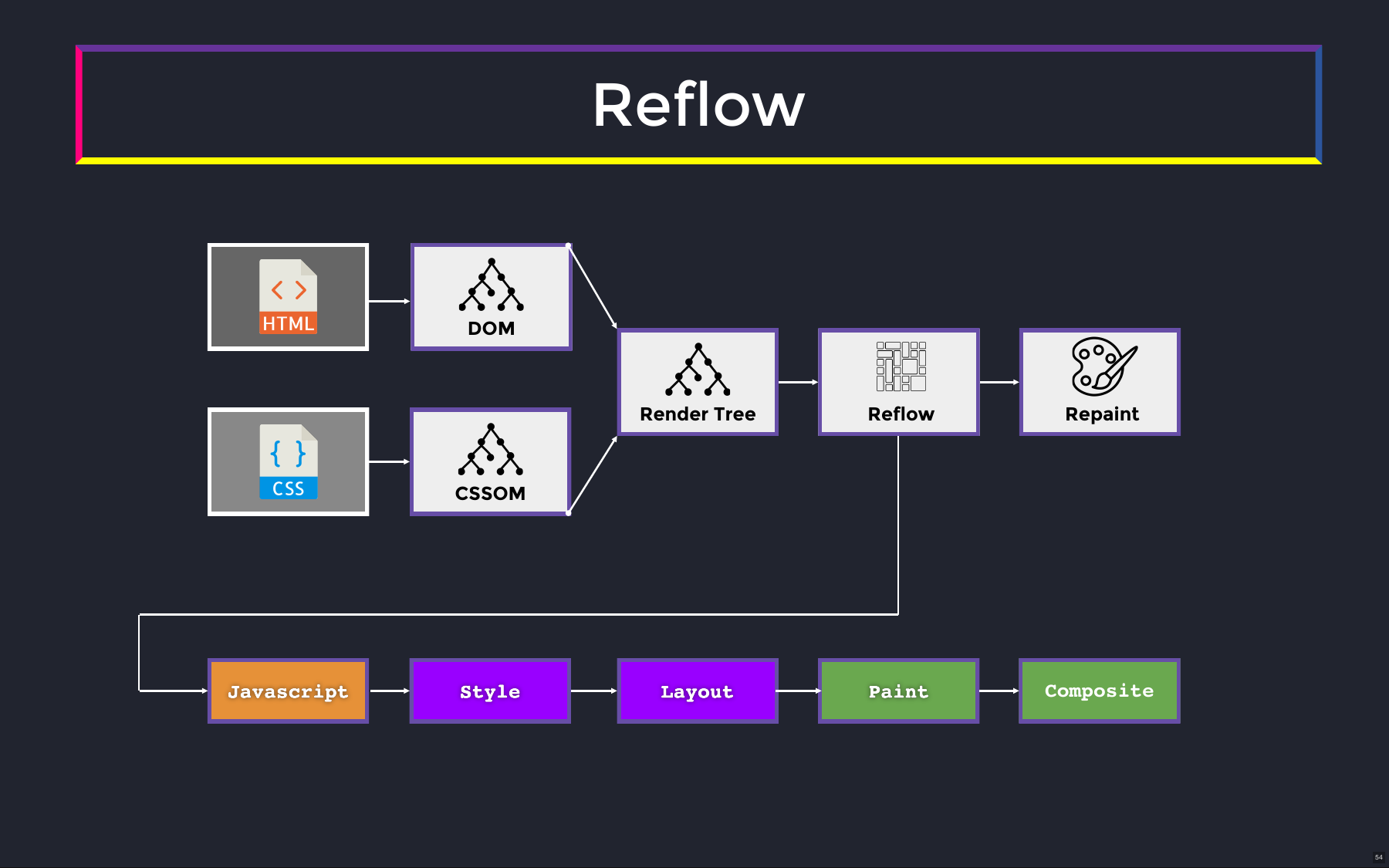
The browser builds two trees from your source:
The render tree then flows through a multi-step pipeline, usually kicked off by JavaScript:
Style and layout are CPU-heavy and run on the rendering thread — triggering reflow too often blocks it. Paint and composite run on the GPU, which is fast at drawing pixels and does not block the rendering thread.
Optimized versus non-optimized animation
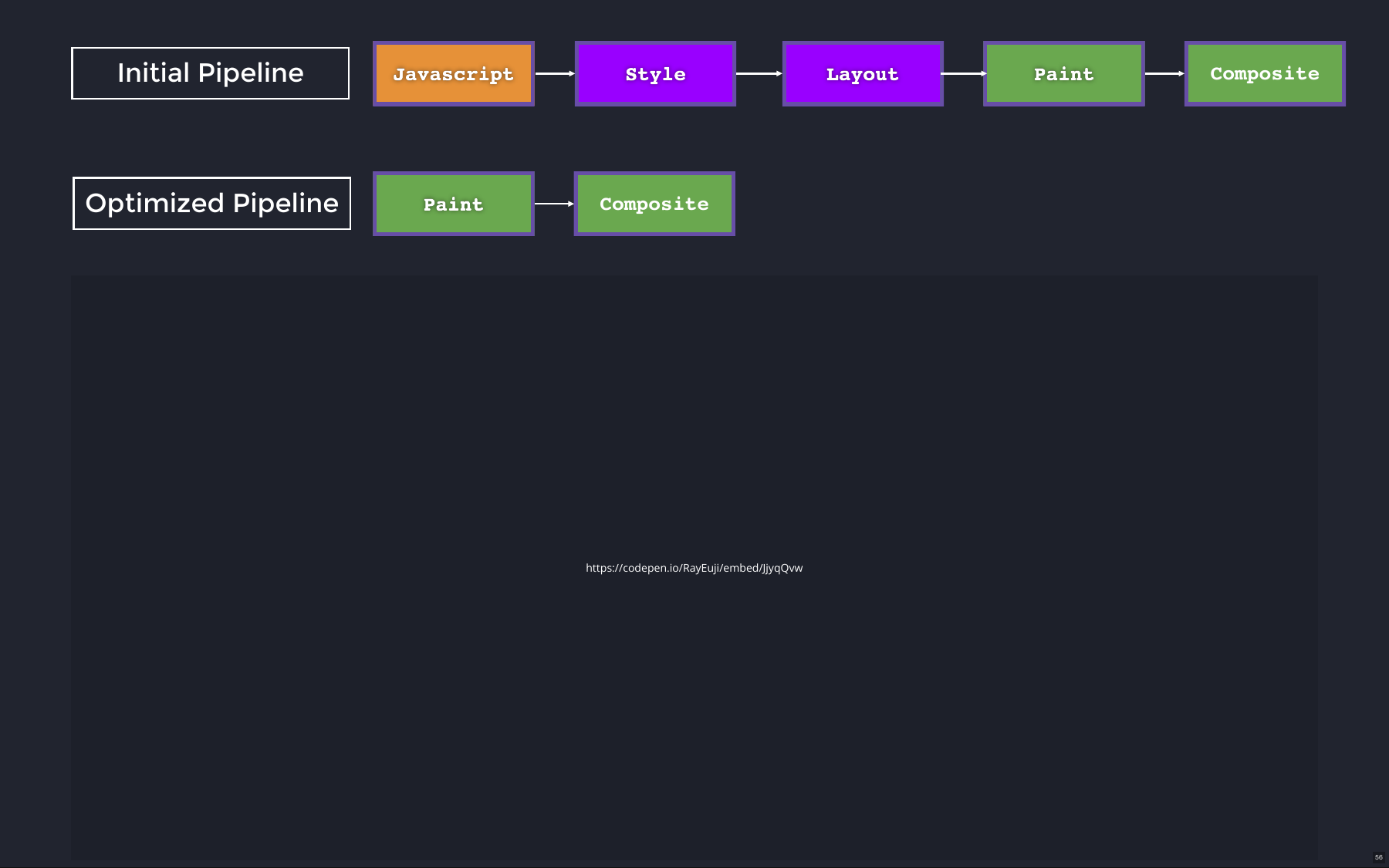
The CodeSandbox example renders 2,000 rectangles. The optimized pipeline relies mainly on the GPU and holds 60 FPS with no visible lag; the non-optimized one runs the full style → layout → paint → composite path every frame.
Margin and translateY
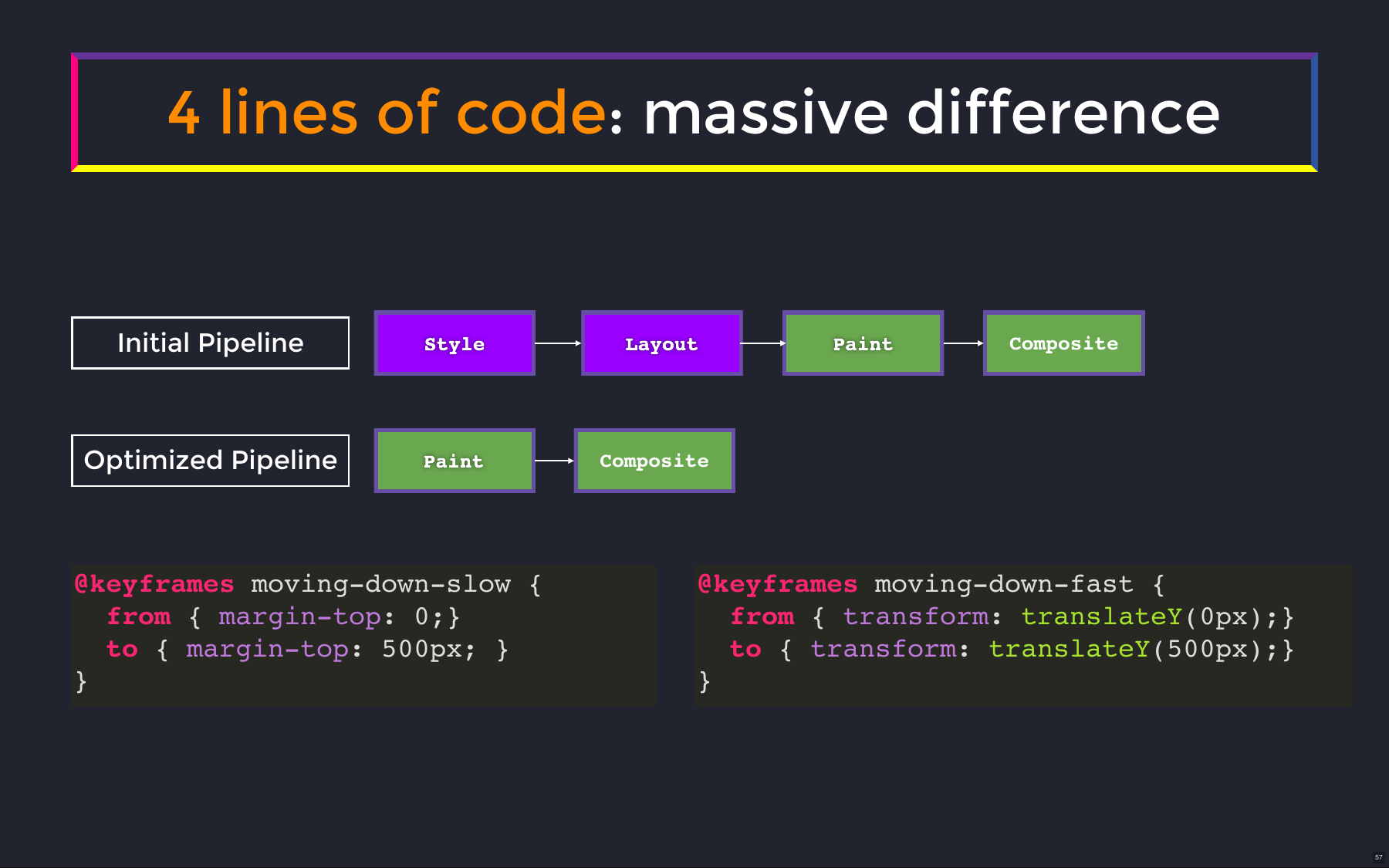
The code difference is two lines, but the pipeline cost is not:
Animating margin forces the browser to recompute positions for all 2,000 rectangles each frame (CPU). Animating translateY just moves already-rendered pixels (GPU).
How browsers use the GPU
The example: four absolutely positioned divs that slightly overlap.
Render objects
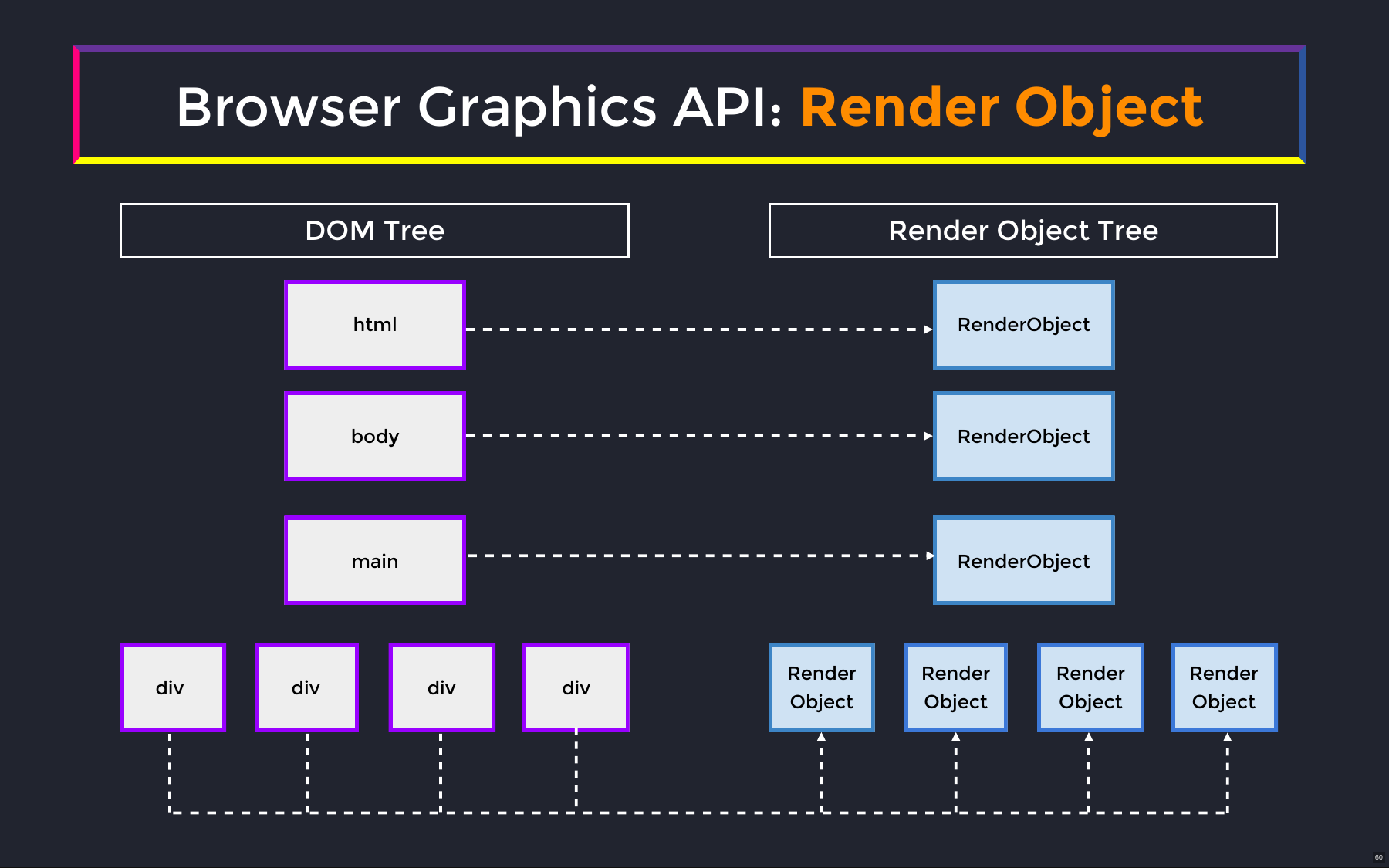
To render on the GPU, the browser builds a render object tree alongside the DOM. It looks like a one-to-one copy, but the objects hold different information:
- A DOM element holds the HTML element and its attributes.
- A render object knows how to draw the element onto a bitmap using a graphics context passed down to it.
Render layers
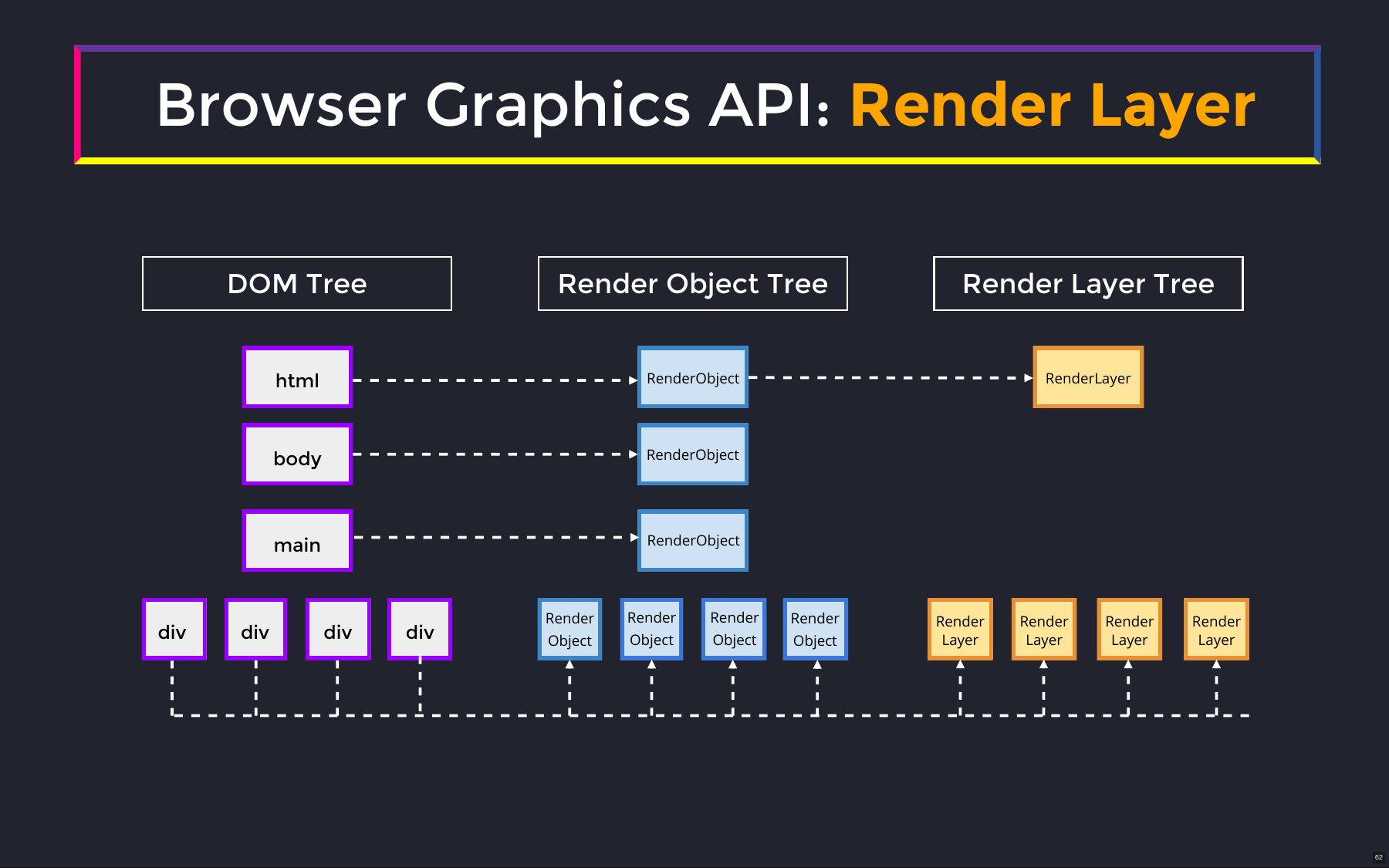
htmlis the root element → creates the root render layer.bodyandmainhave no special properties → assigned to the root render layer.- Each of the four
divs is absolutely positioned → each gets its own render layer, attached to the root.
Graphics layers
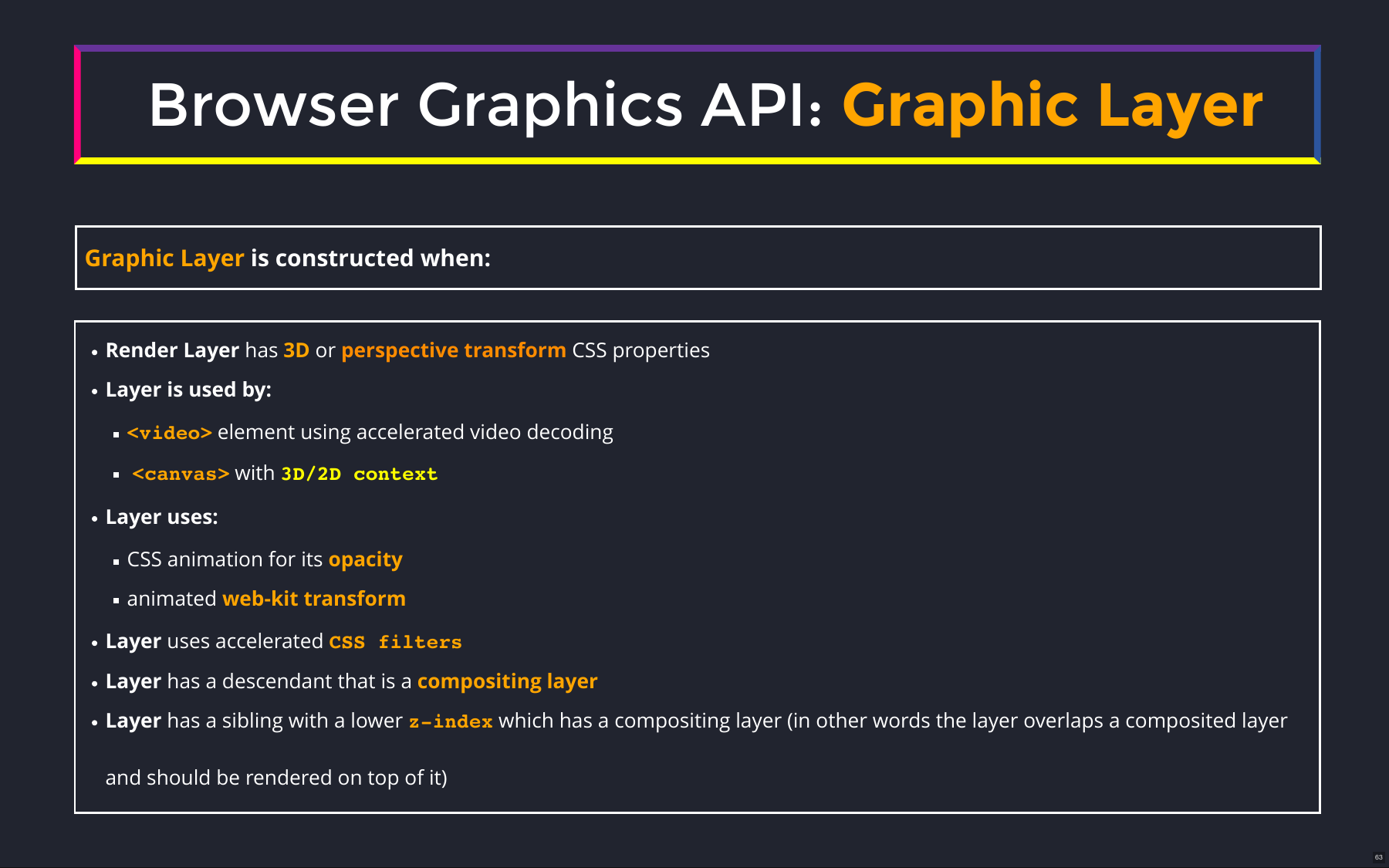
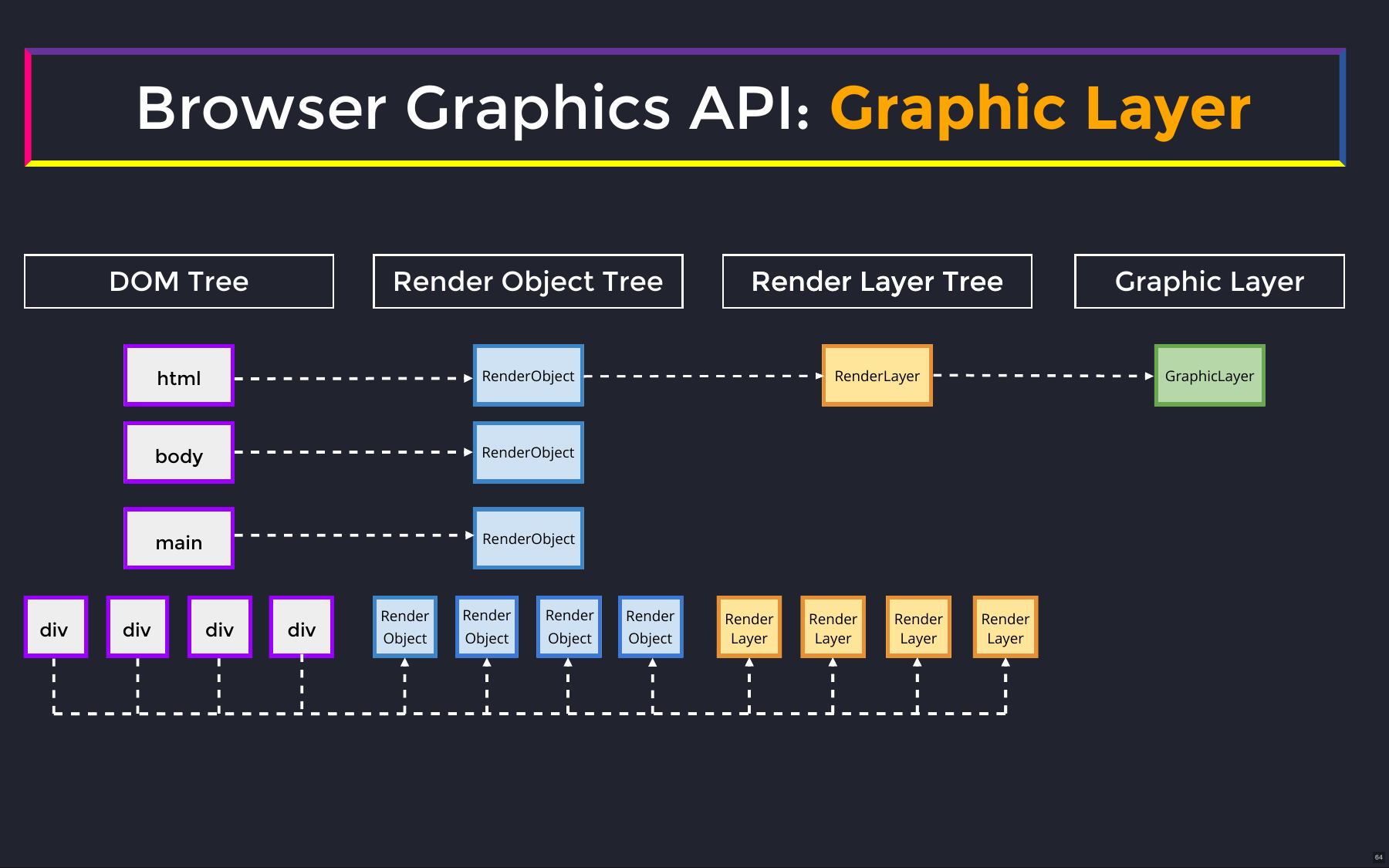
A graphics layer owns a graphics context that draws its render layers. The page needs at least one, created from the root render layer. 3D acceleration (perspective changes, GPU-decoded video, 3D transforms) forces a new graphics layer; without it, render layers share one.
| DOM element | Render object | Render layer | Graphics layer |
|---|---|---|---|
html | ✔ | root render layer | graphics layer 1 |
body | ✔ | root render layer | graphics layer 1 |
main | ✔ | root render layer | graphics layer 1 |
div ×4 (absolute) | ✔ | render layers 2–5 | graphics layer 1 |
So five render layers still share a single graphics layer.
Graphics layers and memory
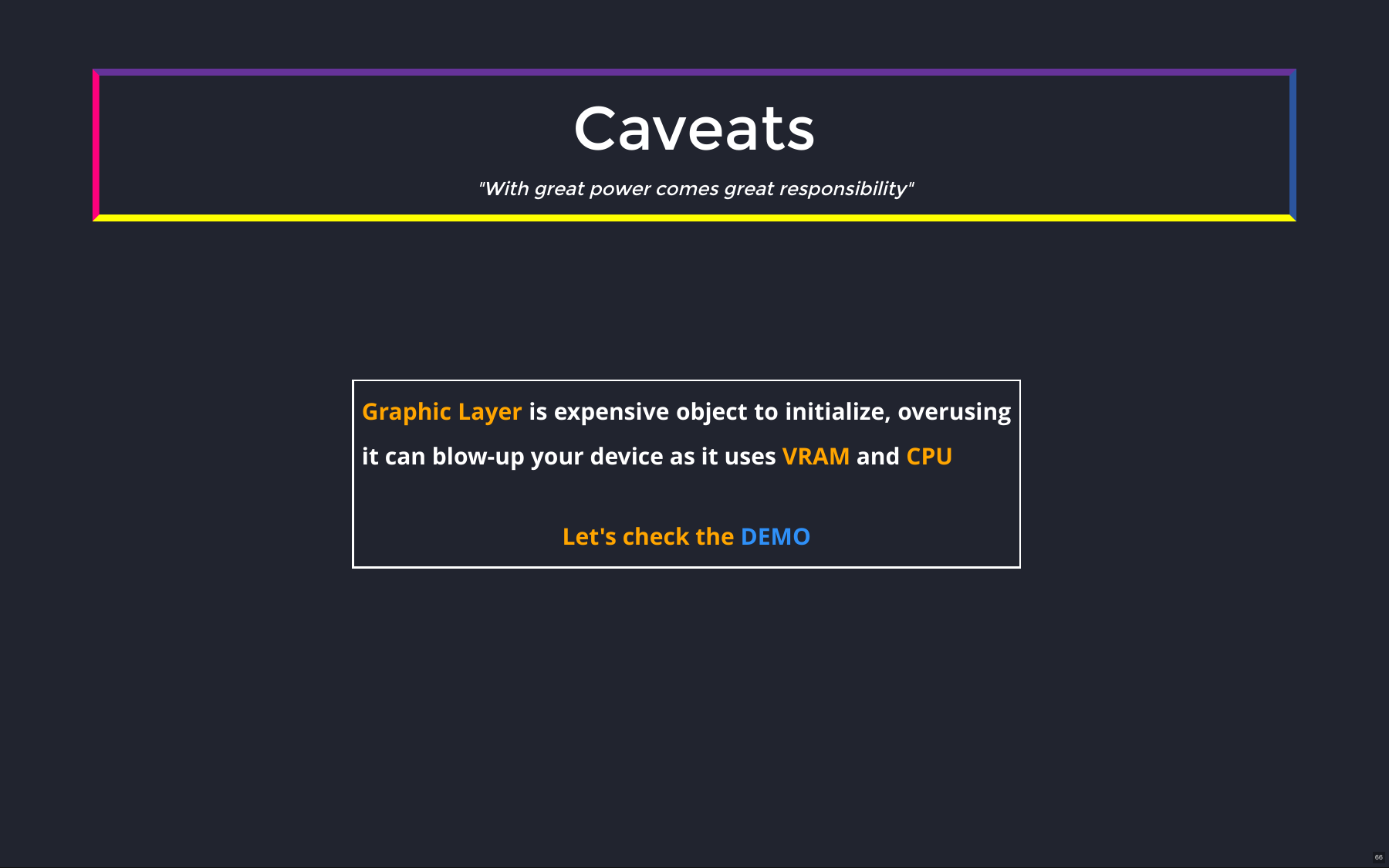
The single graphics layer uses 8.7 MB of GPU memory here. Their value is targeted optimization: a widget with heavy animation can be pushed onto its own graphics layer so the browser can run it at a very high frame rate (e.g. 120 FPS). But every graphics layer consumes GPU memory and processing resources.
Promoting layers
Applying a 3D transform brings the total to five graphics layers. The first still uses 8.7 MB; each new one uses more than half a megabyte.
For a list of hundreds of elements, promoting every element to its own graphics layer can immediately consume around 100 MB of GPU memory. The system needs GPU memory too — memory pressure can force swapping and make the app unresponsive. Overusing graphics layers makes an app slower, not faster.
Questions about CSS performance
The rule of thumb is to minimize reflow: prefer properties that do not trigger the full pipeline. CSS Triggers lists which properties trigger layout, paint, or composite.
Mobile devices
Much web usage is on mobile, where resources are far more limited than on a powerful desktop. Be deliberate about the layers an app creates — a separate layer can help a highly interactive animated widget, but promoting every element on an otherwise static page causes problems.
CSS transforms and GPU memory
CSS transforms avoid reflow but consume GPU memory — how to reconcile that?
Favor GPU work over CPU-heavy rendering work. CPU work can block the rendering thread and hurt responsiveness; making an app unresponsive through GPU usage generally takes substantial overuse, whereas a few mistakes in CPU-heavy rendering quickly cause dropped frames.
Becoming the browser, part two
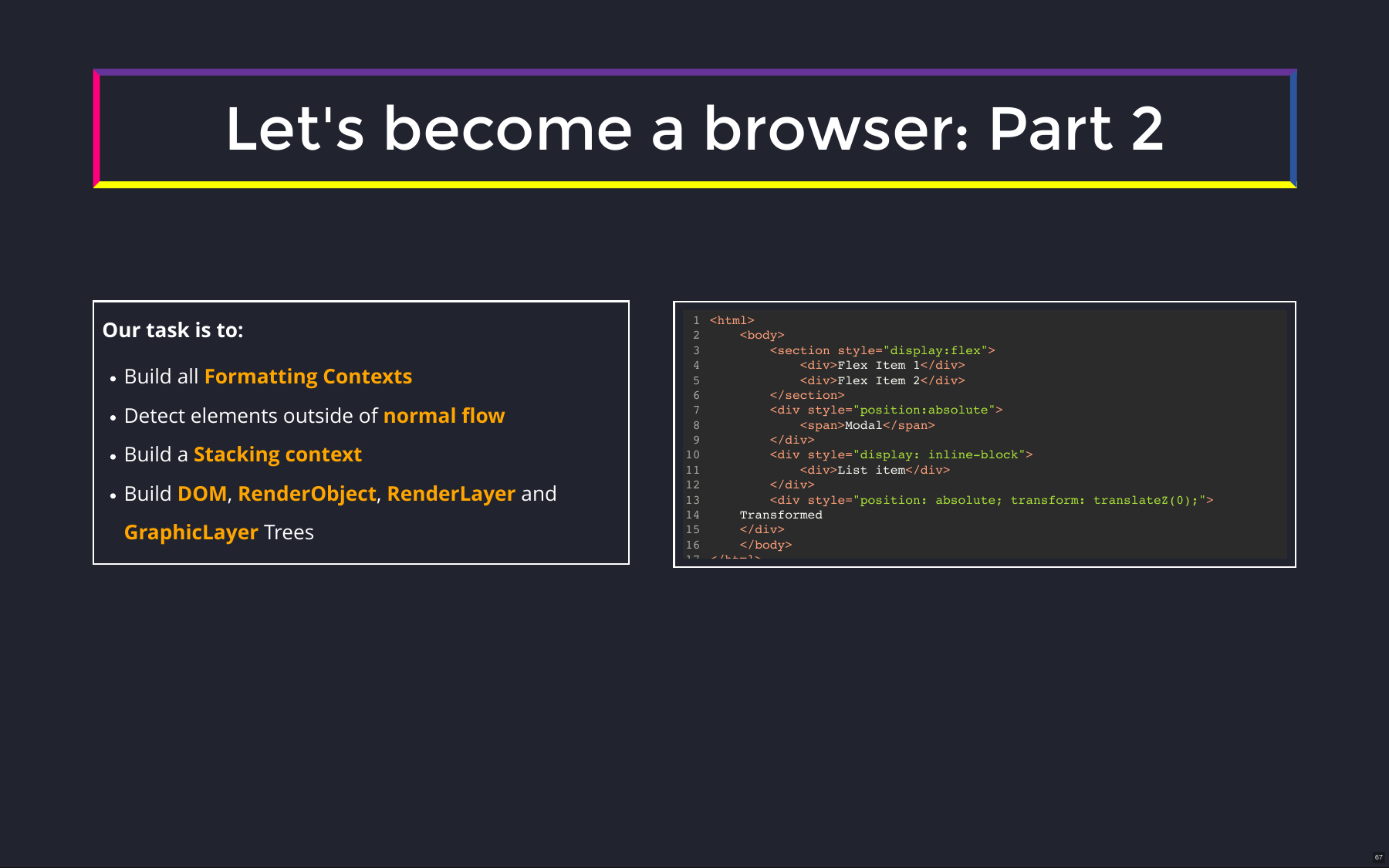
Building every tree together — formatting contexts, in/out of normal flow, stacking contexts, DOM, render objects, render layers, graphics layers.
Steps 3, 5, 6
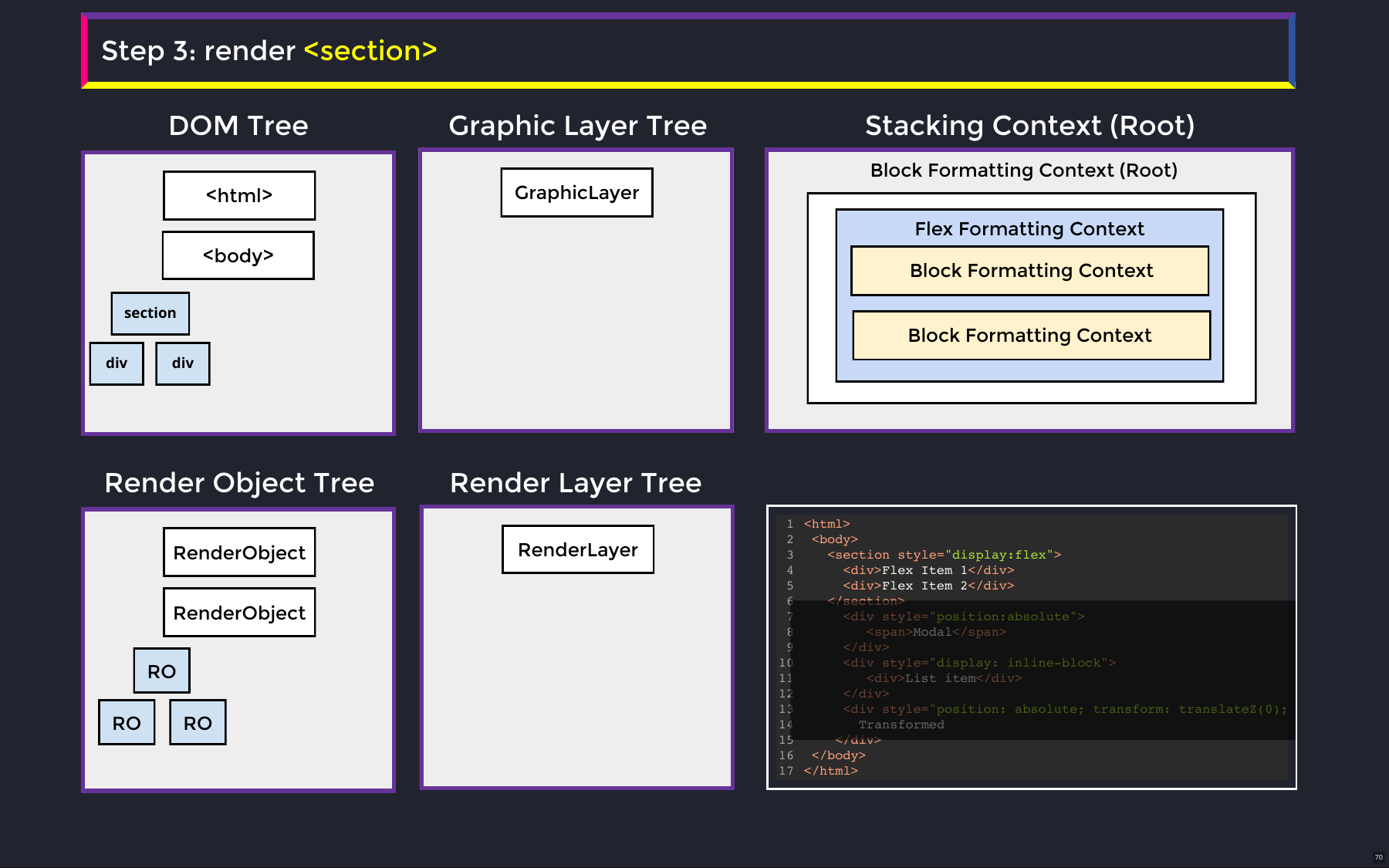
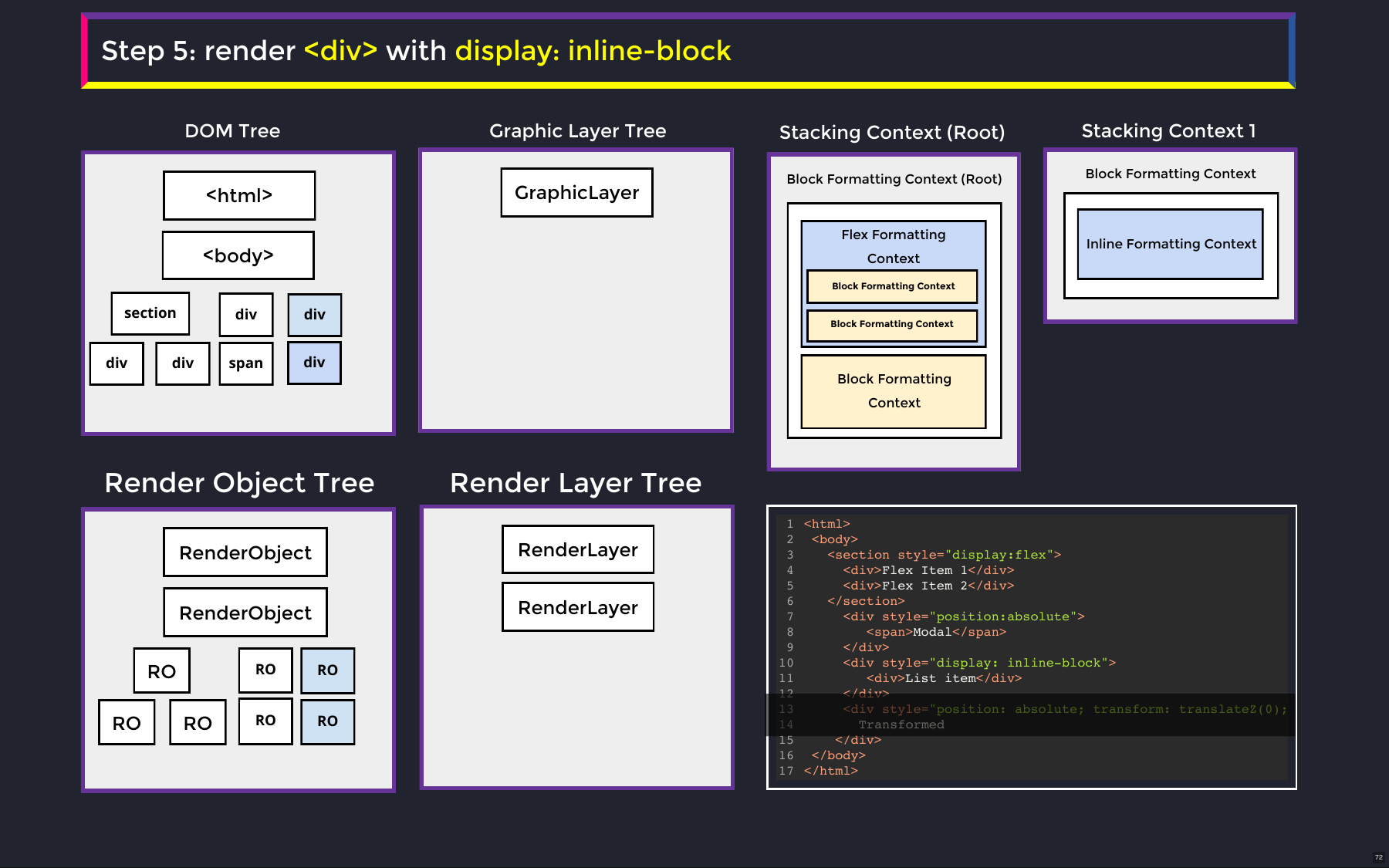
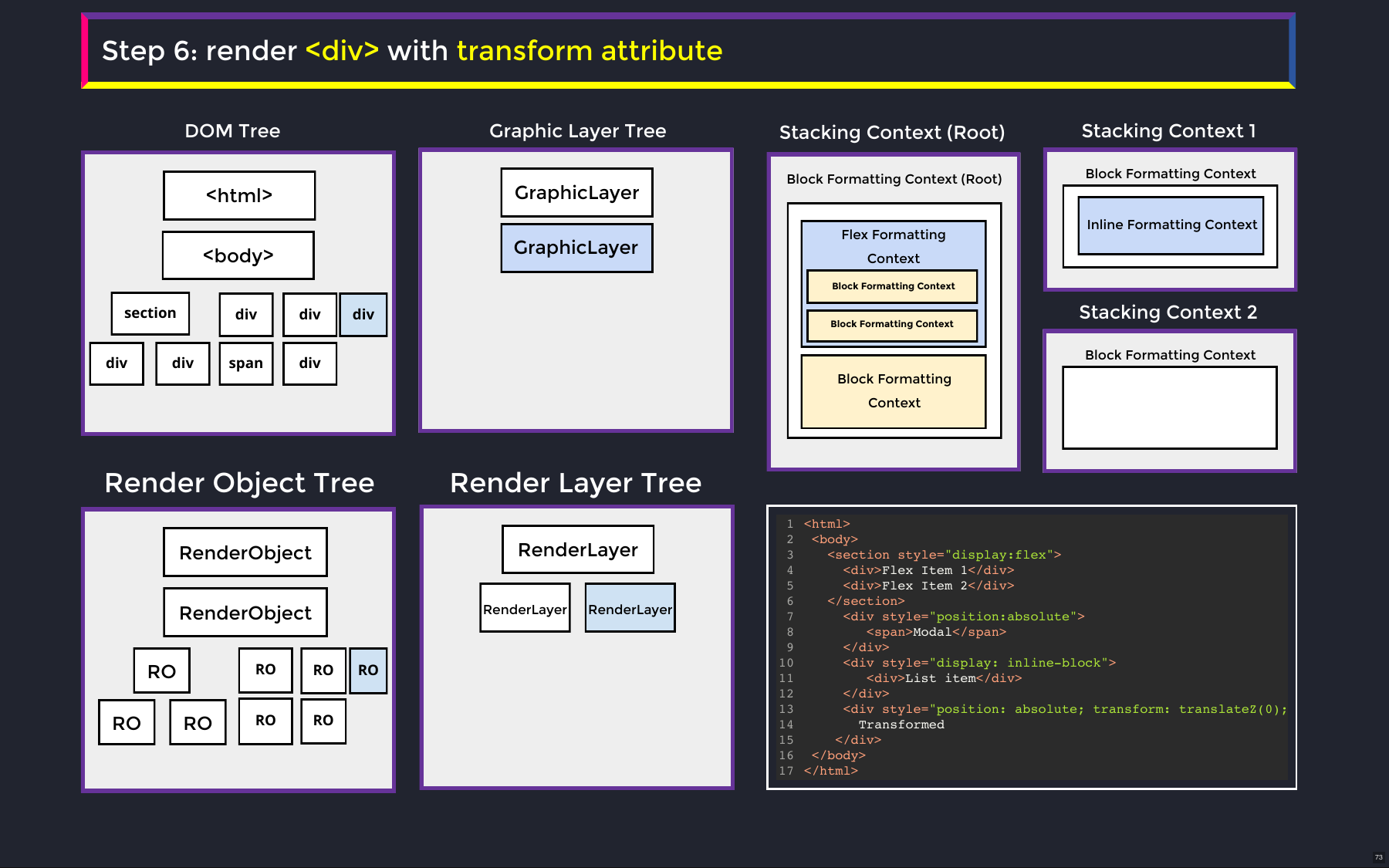
| Step | Element | New render layer? | New graphics layer? | New stacking context? | New formatting context? |
|---|---|---|---|---|---|
| 3 | section with display: flex + flex items | No | No | No | Flex FC, plus a block FC for each flex item's contents |
| 5 | div with display: inline-block | No | No | No | New block FC |
| 6 | div with absolute positioning and a 3D transform | Yes | Yes (3D transform) | Yes | The FC established by the div, nested inside the new stacking context |
An ordinary div does not necessarily create a block formatting context — but a div that is a flex item does get one for its contents.